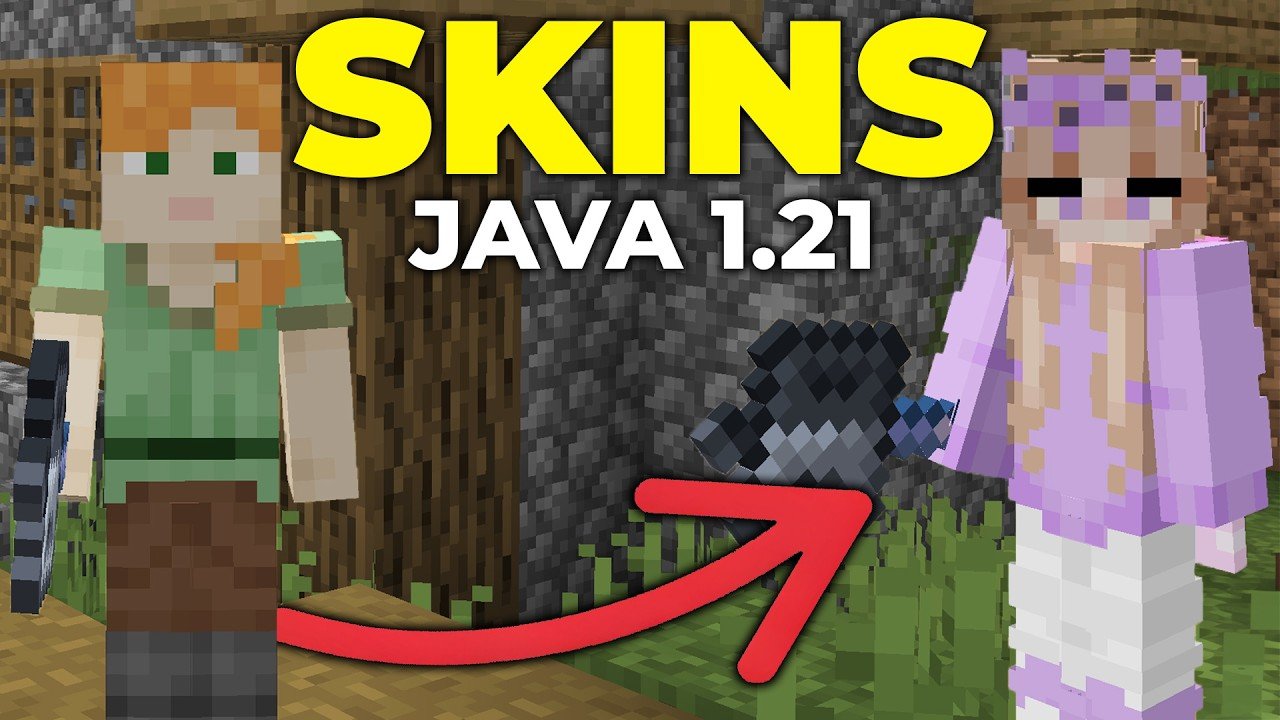
Ever wondered how to switch up your look in Minecraft Java? The thrill of launching your favorite game and seeing your character sporting a fresh, new skin is unbeatable. How To Change Your Skin In Minecraft Java is a game-changer for personalization, letting you flex your creativity in a world that’s all blocky and pixel-perfect. Whether you’re channeling a superhero vibe or rolling out with something quirky and wild, the steps to get there are straightforward, no sweat!
What Is a Minecraft Skin and Why Change It?
Your Minecraft skin is your avatar’s outfit, the visual outfit that speaks before you do. It’s like putting on your favorite jacket before heading to a party—it sets the mood and shows who you are. Changing your skin refreshes your identity in-game, helps you express your personality, and can even make you more recognizable to friends and foes alike.
Understanding the Basics of Minecraft Skins
- Skins are 64×64 pixel images wrapped onto your player model.
- Minecraft Java Edition supports classic and slim model skins.
- You can use skins made by others or design your own from scratch.
Step-By-Step Guide: How To Change Your Skin In Minecraft Java
- Find or Create Your Skin: Head to trusted skin websites like Minecraft Help’s Custom Skin Section to find or design your avatar’s look.
- Log Into Your Minecraft Profile: Open the Minecraft.net site and sign in with your account credentials.
- Upload Your Skin: Navigate to the profile section and select “Change Skin.” Click “Upload” and pick your new skin file (PNG format).
- Confirm and Apply: Hit ‘Save’, then launch the Minecraft Java Edition launcher to see your brand-new skin in action.
Customizing Your Minecraft Skin: Tools and Tips
Feeling artistic? Tools like online skin editors give you the brush and palette to create something unique. From shading to pixel-perfect detailing, these editors help bring your dream skin to life.
- Use sites like YouTube tutorials on Minecraft skins for creative tips.
- Keep your designs within the safe 64×64 pixel dimension.
- Test skins frequently by uploading and checking them in-game.
Troubleshooting Skin Upload Issues
Sometimes, things go sideways. Your skin might not update immediately or fail to upload. Here’s how to fix that:
- Clear your launcher cache.
- Ensure your skin file is PNG and follows the correct size and format.
- Log out and back into your Minecraft account to refresh settings.
Skin Variants: Classic vs. Slim Models in Minecraft Java
Most players don’t realize skins come in two body types:
- Classic: The traditional model with broader arms.
- Slim (Alex Model): Narrower arm design for a slimmer profile.
Choose the right model when uploading to avoid clipping or skin stretching inside the game.
How to Change Your Skin In Minecraft Java on Different Launchers
Not all launchers are created equal. The official Minecraft launcher is the most straightforward for skin changes, but third-party launchers might need additional configuration. Always follow their skin upload instructions carefully to avoid conflicts.
Security Considerations When Downloading Skins
Download skins only from reputable sites. Random sketchy skins might carry viruses or unwanted ads—never worth it for a fancy look. If you’re unsure, stick to popular skin databases or the official Minecraft skin gallery.
Community and Multiplayer Impact: Why Your Skin Matters
Your skin isn’t just cosmetics; it’s your identity in the multiplayer world. Unique skins let allies spot you instantly and might even intimidate opponents. Plus, switching up skins regularly keeps your avatar fresh and exciting to play.
💬
“A friend once switched to a custom skin mid-fight in an intense Minecraft PvP match. The surprise factor gave him the upper hand!”
Final Steps to Rock Your New Skin
Once uploaded, restart Minecraft Java Edition. Dive into multiplayer servers or your solo worlds to admire your new look. How To Change Your Skin In Minecraft Java is a crucial skill for any dedicated player wanting to keep their style as gamer-chic as possible in 2026.
For even more intricate guides, check out the video How To Change Your Skin In Minecraft Java Edition (2026) that breaks down every step visually.

Source: www.youtube.com
Frequently Asked Questions
Can I change my Minecraft skin on any device?
In Minecraft Java Edition, skin changes must be done through your account on a computer browser or the game launcher. Mobile or console versions have different, sometimes limited, skin options.
Is it free to change the skin in Minecraft Java?
Yes! Changing your skin via your Minecraft account and uploading custom skins is completely free. Just ensure you own the game and have a valid account.
How often can I change my Minecraft skin?
You can change your skin as often as you like. Just upload a new skin PNG file each time and apply it through your profile.
What file type and size should my skin be?
Your skin must be in PNG format with a resolution of 64×64 pixels for Minecraft Java Edition. Following these specs ensures perfect in-game rendering.
Where can I safely download Minecraft skins?
Reliable skin sites like those recommended by trusted Minecraft skin guides are your best bet for safe, high-quality skins.

Christina is a technical guide writer and gaming enthusiast with years of experience breaking down complex game settings. Specializing in server optimization and game mechanics, they are dedicated to helping players seamlessly customize their Minecraft experience—from updating skins and usernames to managing technical version settings.