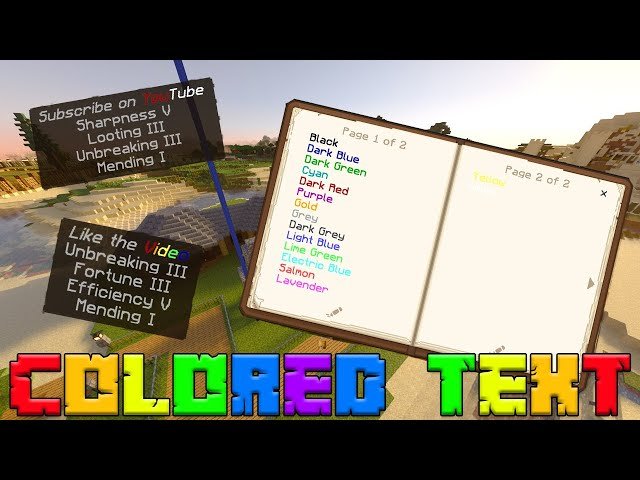
Ever stared at your chat messages or signs in Minecraft and thought, they need some serious color pop? 🎨 Changing text color in Minecraft isn’t just about style; it’s about standing out and making your world uniquely yours. So, how do you change text color in Minecraft? Let’s cut through the noise and make your messages vibrant, whether you’re crafting epic signs or chatting with friends in-game.
What Does Changing Text Color Mean in Minecraft?
In Minecraft, text color affects how your chat messages, signs, books, and even commands appear visually. Colored texts can enhance communication or add flare to your creations. But you can’t just hit a color wheel—there’s a system behind it.
Understanding Minecraft Color Codes
To change text colors, you use specific Minecraft color codes paired with the section sign (§). For example, §c gives you red, §a green, and so forth. But not all editions handle this the same way.
- Java Edition: Supports direct input of § followed by a code.
- Bedrock Edition: Uses a mix of commands and text formatting.
- Education Edition: Allows color changes with specific commands.
Popular Minecraft Color Codes
| Code | Color |
|---|---|
| §0 | Black |
| §1 | Dark Blue |
| §2 | Dark Green |
| §3 | Dark Aqua |
| §4 | Dark Red |
| §5 | Dark Purple |
| §6 | Gold |
| §7 | Gray |
| §8 | Dark Gray |
| §9 | Blue |
| §a | Green |
| §b | Aqua |
| §c | Red |
| §d | Light Purple |
| §e | Yellow |
| §f | White |
How To Change Text Color In Minecraft: Step-By-Step Guide
So you’re all fired up and ready to colorize your Minecraft texts; here’s exactly how to do it across the most popular areas:
1. Changing Chat Message Color
In multiplayer servers, admins often use plugins to allow color in chat. Without plugins, plain Minecraft doesn’t support colored chat messages by default, but through commands or mods, you can inject color.
2. Changing Sign Text Color
To add color to sign text, you need the § symbol followed by the color code before the message text. For instance, to make red text type §cYour Text. But wait, how do you input §?
On Java Edition, press Alt + 2 + 1 on the numeric keypad or copy-paste the symbol.
Some editions restrict § typing—Minecraft Education Edition offers commands to change sign text colors more easily. For a visual tutorial, check the video walkthrough demonstrating how to change the color of text on a Minecraft sign.
3. Using Commands For Text Colors
In Minecraft (especially Education Edition), commands like /tellraw and /title support JSON text with color parameters to customize messages fully. For example:
/tellraw @a {"text":"Hello!","color":"red"}It looks complex, but once you grasp the basics, you can craft flashy texts right in chat! Here’s an additional resource for command-based colors in Minecraft Education Edition: Change Text Color – Minecraft Education Edition.
Why Use Colored Text in Minecraft?
Colored text isn’t just for vanity. Imagine you run a busy community server. Using color helps separate admin messages, highlights important announcements, or just spices up nicknames. It’s practical and fun. Without it, your server chat looks like gray monotony.
Common Problems & How To Fix Them
- § symbol not typing? Try copying-pasting or use Alt codes on PC.
- Color codes ignored? May be disabled by the server or edition limitations.
- Trying colors on Bedrock Edition? Use commands as raw input doesn’t support §.
Tips To Remember When Changing Text Color
- 🚀
- Not all platforms support text color identically.
- Colored text on signs is permanent once placed.
- Use bright colors for maximum visibility.
- Experiment with combining color codes with bold or italic for style.
Advanced Formatting Techniques
You can go beyond colors by adding styles like bold (§l), italic (§o), underline (§n), and strikethrough (§m). Mix these with colors for eye-catching effects. Example: §c§lBold Red!
Safety & Etiquette Using Colored Text
Using colors can improve communication but don’t spam or use it to harass. Follow server rules and respect fellow players.
Summary: Your Roadmap To Expert Text Customization
- Know your edition’s capabilities.
- Master typing or inputting the § symbol.
- Use official Minecraft color codes and commands.
- Follow etiquette for a fun community experience.
Now you know how to change text color in Minecraft and have the know-how to make your messages shine and your signs pop. Keep exploring, keep customizing, and impress your friends with your colorful mastery. 🎉 Remember, an eye-catching message is always a step ahead! This guide has you covered in 2026 with the freshest tips and tricks, and you’re all set to color your Minecraft world like a true pro.

Source: gaming.stackexchange.com
Frequently Asked Questions
Can I use different colored texts in Minecraft chat without mods?
By default, Minecraft Java Edition doesn’t allow color in chat without plugins or mods. However, server admins can enable color support using specialized plugins or commands.
How do I type the § symbol to add color codes on signs?
On Windows, press Alt + 21 on the numeric keypad, or copy-paste the symbol from external sources. On other platforms, copy-pasting or using commands is recommended.
Does Minecraft Bedrock Edition support colored text on signs?
Bedrock Edition does not natively support typing § for colors in signs, but you can use commands or Minecraft Education Edition features for colored text.
What commands allow text color changes in Minecraft?
Commands like /tellraw, /title, and /give with JSON text allow complex colored text in Java and Education editions.
Are colored texts visible to all players?
Yes, if properly used via commands or plugins, all players on the server can see colored texts.

Christina is a technical guide writer and gaming enthusiast with years of experience breaking down complex game settings. Specializing in server optimization and game mechanics, they are dedicated to helping players seamlessly customize their Minecraft experience—from updating skins and usernames to managing technical version settings.