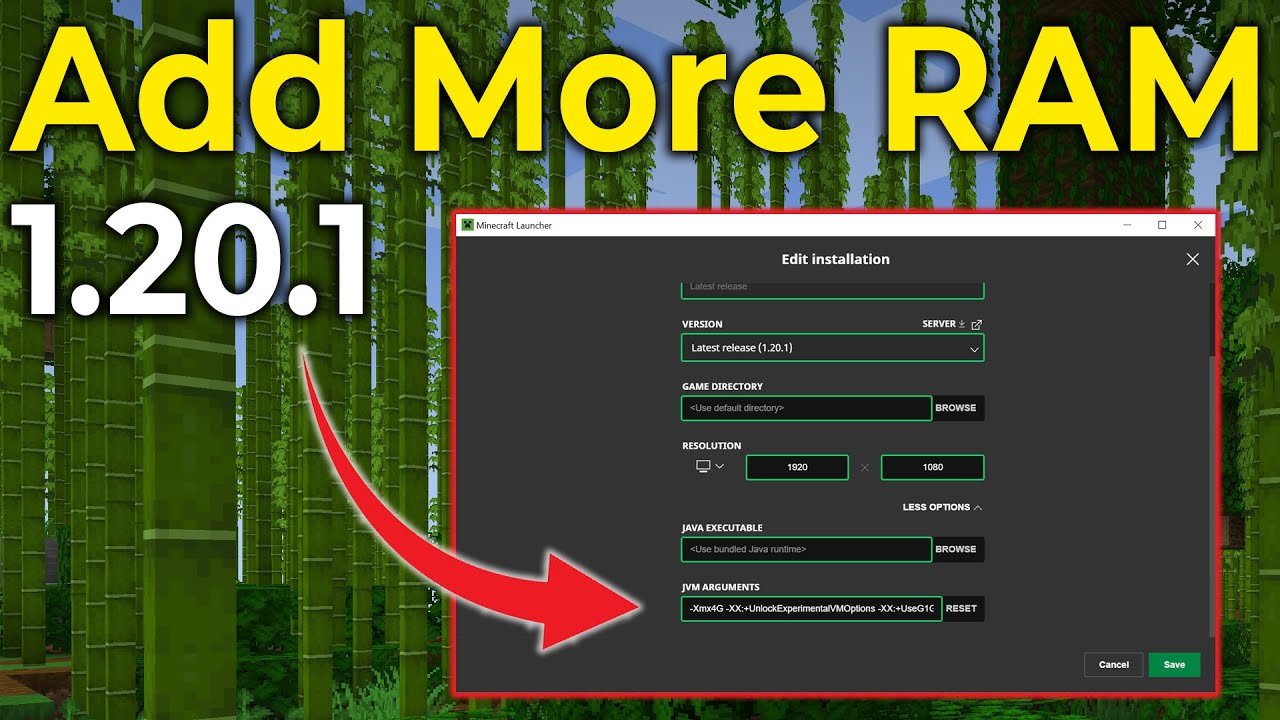
Jumped into a wild Minecraft world and noticed those lags? You’re not alone. How To Change Ram Allocation Minecraft can flip your frame rate disaster into silky smooth motion. Minecraft, by design, is pretty lightweight, yet mods and expansive builds can choke the default memory settings faster than a hungry creeper. Let me guide you through upgrading your RAM allocation hassle-free in 2026, boosting your gameplay hardcore! 🚀
Why Change RAM Allocation in Minecraft?
By default, Minecraft hugs just a little RAM, barely scratching your PC’s potential. Allocating more RAM turbocharges loading times, reduces in-game lag, and lets you run hefty mods with ease. However, it’s a fine balance because over-allocating can hog your system and cause other programs trouble.
- Default RAM for Minecraft: Usually 2GB or less.
- Recommended for heavy mods: 4-6GB allocation.
- Your PC needs enough free RAM: Don’t allocate more than half your total RAM.
Checking Your PC’s Total RAM
Before diving into Minecraft’s memory tweaks, verify what you’re working with. On Windows, open Task Manager (Ctrl+Shift+Esc), navigate to the Performance tab, and see your total RAM. Mac users can go to About This Mac > Memory.
Methods to Change RAM Allocation Minecraft
1. Using the Minecraft Launcher
The straightforward approach is through the Minecraft Launcher’s settings. Here’s the full recipe:
- Open your Minecraft Launcher.
- Click on Installations on the top menu.
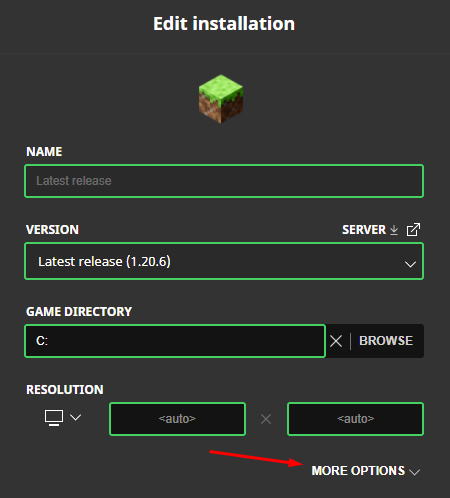
- Hover over your chosen Minecraft version, then click the three dots, select Edit.
- Choose More Options at the bottom.
- Look for JVM Arguments. Here you’ll find something like
-Xmx2G(means max RAM of 2GB). - Change
2Gto your desired RAM amount, e.g.,4Gfor 4GB. Ensure it’s less than half your total RAM. - Hit Save and launch Minecraft.
Voilà! Your game now grabs more memory, leveling up performance. This handy method handles most cases for unmodded or lightly modded Minecraft.
2. For Modded Minecraft and Advanced Users
If you’re rocking mod loaders like Forge or Fabric, and using third-party launchers (MultiMC, ATLauncher), RAM allocation is similar but each launcher has its own settings panel for memory allocation. They often present sliders or input boxes to set RAM easily without messing with JVM arguments manually.
Pro tip: Always check launcher documentation or forums for launcher-specific advice.
How To Avoid Common RAM Allocation Mistakes
- Do NOT allocate more RAM than your system has available.
- Keep some RAM free for background apps and OS tasks.
- Be cautious with 32-bit Java, it can’t handle more than ~1.5GB RAM.
- Verify you’re using the correct Java version: 64-bit is necessary for allocating more RAM properly.
Technical Tips: Understanding JVM Arguments
Java Virtual Machine (JVM) controls memory usage Minecraft enjoys. Key arguments include:
-Xmx: Maximum RAM Minecraft can use (e.g.,-Xmx4G= 4GB max).-Xms: Initial RAM allocated at start.
Changing -Xmx impacts overall performance greatly, while -Xms can help with initial load stability.
Step-by-Step: Check Your JVM Version
On Windows, open Command Prompt and type java -version. Confirm you see a 64-bit Java version (e.g., ‘Java HotSpot(TM) 64-Bit Server VM’). If you don’t, visit Oracle’s site or your preferred Java provider to install the 64-bit Java 17 or later version, as Minecraft and mods work best with the newest supported Java releases.
Memory Impact On Minecraft Gameplay
Allocating more RAM means chunk loading is faster, textures pop up quicker, and massive mod packs run without choking. However, too much allocation might cause garbage collection lag spikes — a delay the JVM experiences managing memory reclaiming. Keep that in mind when tweaking numbers.
Special Tips For Smooth 2026 Minecraft RAM Allocation
- Don’t blindly max out RAM — observe FPS stability before increasing.
- Allocate according to your Minecraft version and mod load.
- For Minecraft 1.21+, newer Java versions streamline performance; keep Java updated.
Curious about hands-on walkthroughs or expert advice for RAM tweaks? The video explains how to allocate more RAM to Minecraft with practical visuals and debugging tips. Also, a detailed guide on how to upgrade Minecraft server RAM can serve as a brilliant reference for server-side memory management.
What If The Game Still Runs Slow?
Beyond RAM, factors like CPU, GPU, and disk speed matter. Minecraft can also be bottlenecked by poorly optimized mods or outdated drivers. Consider:
- Updating your graphics card drivers.
- Limiting background programs during play.
- Checking for Minecraft updates and mod compatibility.
🚀 Quick Performance Booster Techniques
- Use OptiFine mod for graphical optimization.
- Adjust video settings to medium or low textures.
- Allocate a sensible amount of RAM (usually 4GB for modded, 2GB for vanilla).
- Ensure Java is 64-bit and updated.
“Manipulating RAM allocation feels like tuning a race car: more fuel doesn’t always mean better speed, but too little, and you stall out.”
Source: www.namehero.com
Frequently Asked Questions
How much RAM should I allocate to Minecraft?
For vanilla Minecraft, 2GB is usually sufficient. For modded gameplay, allocate between 4GB and 6GB depending on your total system RAM. Never allocate more than half your available RAM.
Can allocating too much RAM crash Minecraft?
Yes, if you assign excessive RAM, the Java garbage collector may cause lag spikes or performance issues, and your system might become unstable, impacting other programs.
Do I need 64-bit Java to increase RAM allocation?
Absolutely. 32-bit Java versions limit memory usage to around 1.5GB. Use 64-bit Java for smoother and higher RAM allocations.
How do I change RAM allocation on third-party launchers?
Most third-party launchers like MultiMC or ATLauncher have dedicated settings for memory allocation, usually accessible in the launcher’s profile or settings sections. Adjust sliders or input fields accordingly.
Does increasing RAM guarantee better Minecraft performance?
Not always. While more RAM helps with large worlds and mods, CPU and GPU power, game settings, and Java version also critically affect performance.

Christina is a technical guide writer and gaming enthusiast with years of experience breaking down complex game settings. Specializing in server optimization and game mechanics, they are dedicated to helping players seamlessly customize their Minecraft experience—from updating skins and usernames to managing technical version settings.