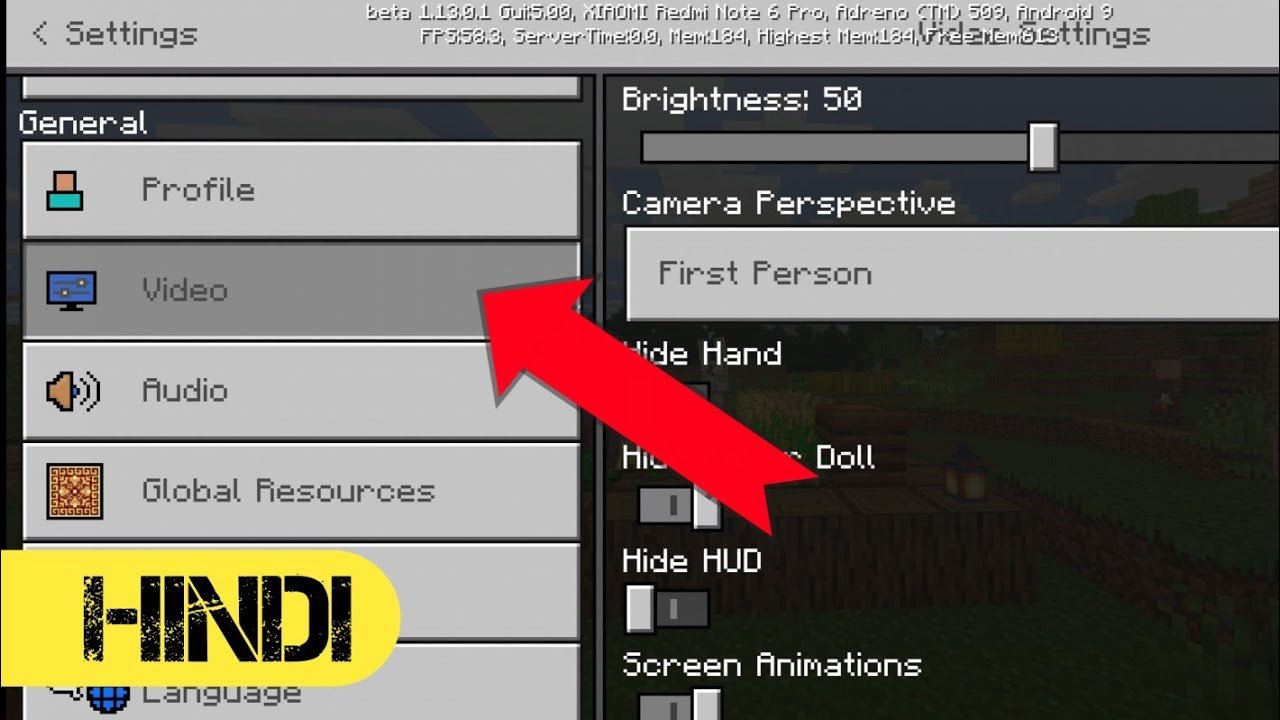
Ever snapped your head to a new camera view in Minecraft and wondered why it feels like riding a roller coaster blindfolded? How To Change Camera In Minecraft is the ticket to your gaming freedom. Whether you’re completing a precarious build or escaping a creeper’s explosion, controlling your perspective can be a game-saver. Let’s break down the ways to switch between views without the trial-and-error chaos of incorrect keys.
Understanding Minecraft’s Camera Basics
Minecraft offers standard camera views: first person, third person from the back, and third person facing forward. These options dramatically affect your gameplay experience and tactical advantage. The camera controls are fundamental but often overlooked by new players eager to explore.
- First Person: Default; immersive view.
- Third Person Back: Shows avatar from behind.
- Third Person Front: Shows avatar’s face.
Switching Camera Views Using Keyboard and Controllers
Pressing the F5 key cycles through the camera views on your PC, but did you know this simple button press hides complexity? When you tap F5, Minecraft toggles between first-person and two distinct third-person perspectives. Console players have their dedicated controls, making switching camera views just as straightforward.
- Press
F5once: Switches to third-person back view. - Press
F5twice: Switches to third-person front view. - Press
F5again: Returns to first-person view.
Using these shortcuts amps up your situational awareness — important in both single-player adventures and heated PvP battles.
Adjusting Camera Settings in Minecraft Bedrock and Education Editions
For Bedrock and Education Edition users, camera tweaking involves more than key presses. The Minecraft camera system offers preset configurations allowing educators and builders to highlight specific environments.
According to the official Minecraft camera preset overview, third-person cameras can be adjusted for eye height, rotation, and distance. This customization powers educational tours and creative storytelling within the game.
- Eye height adjustment
- Preset rotation angles
- Distance controls for better framing
Using the CAMERA Command for Advanced Control
The introduction of the /camera command revolutionized how players capture moments or create cinematic effects. This command lets you control camera angles programmatically—perfect for creators filming Minecraft machinimas or directional tutorials.
You can watch a complete tutorial on the powerful new CAMERA command in this video, which meticulously explains syntax and example uses to change camera modes, save presets, and recall angles dynamically.
Example usage of CAMERA Command
- /camera preset thirdpersonback — Switches to third-person back view
- /camera preset firstperson — Sets to first-person view
- /camera path start/end — Creates smooth camera movements
Modding Minecraft for Custom Camera Angles
For the intrepid, modding the Minecraft Forge framework opens doors to customized camera behavior. Mods modifying eye height or camera position let users get unique perspectives unattainable in vanilla gameplay. One notable example was a community fix on forums adjusting eye height during sneaking or swimming to increase realism and immersion.
You can peek into modding discussions for these camera tweaks on Forge forums.
Common Mistakes When Changing Cameras
- Not knowing your keybindings: F5 may be remapped or disabled.
- Confusing third-person front with back view (the avatar faces you in front view, which can be disorienting).
- Ignoring effects of camera perspective on aiming and block placement.
- Failing to adjust camera after using mods or commands which alters default behavior.
Practical Tips for Efficient Camera Management
- Memorize the
F5key cycle; it’s your camera lifeline. - Use camera presets in Bedrock Edition to save preferred angles.
- Experiment with the /camera command in creative mode to find perfect screenshot angles.
- Test mod compatibility thoroughly before applying camera-related mods.
- Adjust camera before starting complex builds or PvP matches.
How Camera Changes Impact Gameplay Strategy
Switching to third-person view is not just for style – it improves spatial awareness, allowing you to track monsters sneaking up behind you. Conversely, first-person gives precise aim and block placement control. Understanding when to switch matters deeply in survival and adventure mode dominance.
💬 “Once I started playing with camera viewpoints, escaping creepers became less nerve-racking. It’s like adding a new layer of senses.” – Casual Minecraft Player, 2026
How To Change Camera In Minecraft: Wrapping It Up
If you’re still wondering How To Change Camera In Minecraft, start by tapping F5 repeatedly to cycle views. Dive into the commands and presets if you crave a professional touch. Remember, camera perspectives affect everything from building to battling — treat it as more than a setting. Master this, and you rock Minecraft with confidence and a fresh outlook 🔥.
One last tip: always keep your view settings ready for sudden gameplay shifts — it’s your secret weapon packed right in the vanilla game’s HUD. For more on Minecraft’s camera tricks and deep dives, watch the latest video tutorial on camera views.

Source: www.youtube.com
Frequently Asked Questions
What key switches camera views in Minecraft?
The F5 key toggles between first-person, third-person back, and third-person front views quickly on PC versions.
Can I customize camera angles in Minecraft Bedrock Edition?
Yes, Bedrock and Education Editions allow preset camera adjustments for rotation, eye height, and distance, enhancing exploration and filming capabilities.
How does the /camera command improve camera control?
The /camera command enables advanced camera angle control and smooth transition animations, ideal for creators and machinima makers.
Are there mods for changing Minecraft’s camera more precisely?
Yes, mods such as Forge mods let you adjust camera eye height and viewpoints beyond vanilla capabilities for enhanced gameplay experience.
Why should I switch camera views during gameplay?
Changing camera angles boosts situational awareness, aiming precision, and creative freedom during builds, battles, and exploration.
Is the camera view saved after exiting Minecraft?
No, Minecraft resets to the default first-person view when you restart the game, so you need to switch camera again manually if desired.

Christina is a technical guide writer and gaming enthusiast with years of experience breaking down complex game settings. Specializing in server optimization and game mechanics, they are dedicated to helping players seamlessly customize their Minecraft experience—from updating skins and usernames to managing technical version settings.