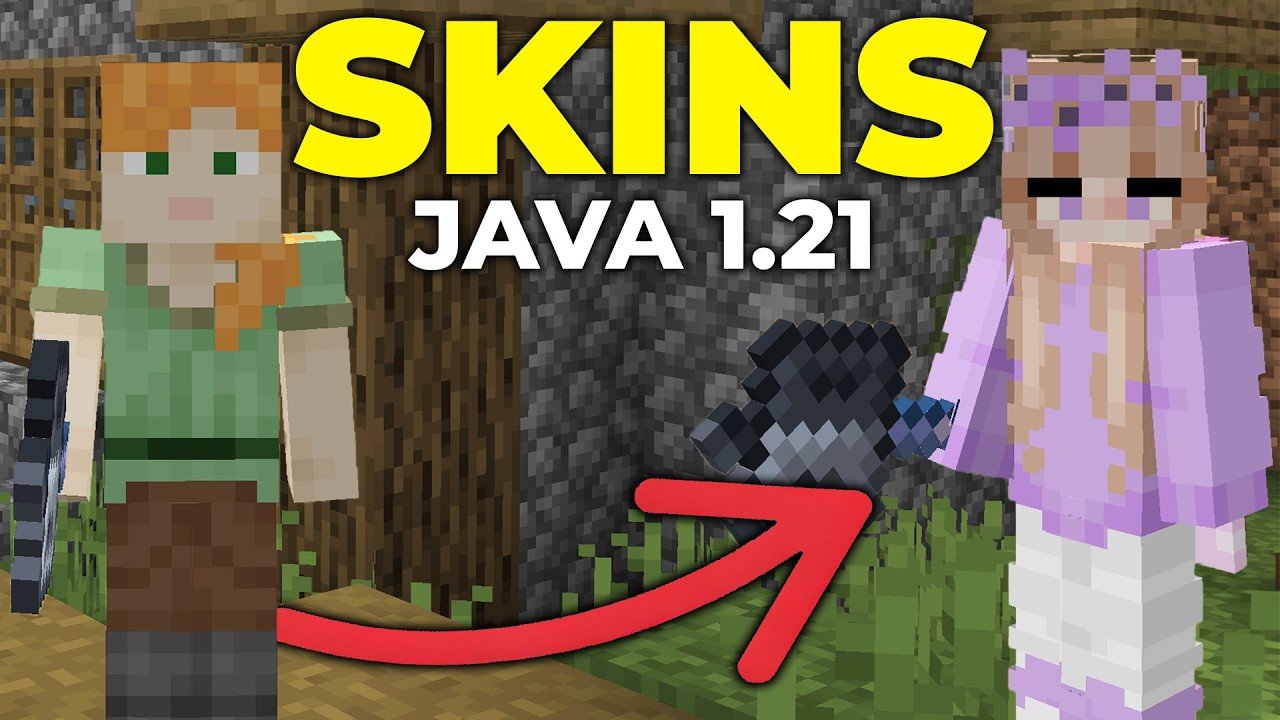
Ever found yourself stuck staring at a boring Minecraft avatar? Wondering how to change Minecraft skins without juggling through complicated menus? In 2026, it’s easier and way more fun to switch up your Minecraft look than ever before. Imagine turning from a plain Steve clone into a fierce dragon warrior or even a favorite superhero in moments—yes, it’s that slick! But where do you start? Let’s break down exactly how to change Minecraft skins, whether you’re on Java edition or using the Bedrock variety.
Why Change Your Minecraft Skin?
Your skin is your in-game identity. Changing it boosts your game excitement, shows off creativity, and helps you stand out in multiplayer realms. Plus, with the growing community of skin designers and editors online — your avatar can be truly unique!
How To Change Minecraft Skins: Different Platforms
Minecraft Java Edition
- Go to the official Minecraft skin customization page.
- Log into your Mojang or Microsoft account connected to Minecraft.
- Choose a skin file from your device (must be PNG file, 64×64 px standard).
- Upload the skin and save.
- Restart Minecraft to see your new skin applied.
Minecraft Bedrock Edition
- Launch Minecraft and select the profile.
- Click Edit Character, then navigate to skins.
- Browse built-in skins or import custom skins from your device.
- Apply and confirm to update your avatar.
Finding and Creating Custom Skins
Looking for that perfect dragon suit or retro sci-fi costume? Sites like SkinMC.net let you craft your own design or download free and paid skins. Just make sure to check compatibility with your Minecraft edition!
Advanced Tips For Skin Switching
- Backup your favorite skin files before overwriting.
- Use high-quality editors to avoid pixelation and bugs.
- Regularly update skin libraries to access new trends and styles.
- Try skins with transparency for cool layered effects.
Troubleshooting Skin Issues
If your skin doesn’t display, clear your launcher cache or double-check your file format. Sometimes restarting the game or even your PC fixes the glitch. Issues may also arise if using cracked or unofficial Minecraft versions.
Legal and Safety Considerations
Create your skins or download from reputable sources only. Avoid shady sites which may compromise your Microsoft account or contain malware. Minecraft’s community sites and official platforms are your safest bets to explore skins securely.
Summary
Learning how to change Minecraft skins moves you ahead in the customization game, letting your creativity run free on any platform. Whether it’s Java or Bedrock, the tools and steps are straightforward and in 2026 more user-friendly than ever. Take control of your avatar’s look, try new styles, and don’t shy from experimenting — after all, your skin says a lot about your Minecraft persona!

Source: www.youtube.com
Frequently Asked Questions
How do I change Minecraft skins in Java Edition?
Simply log into your Minecraft.net account, upload a PNG skin file via the skin section, and the change applies instantly or after a game restart.
Can I use custom skins on Minecraft Bedrock Edition?
Yes, you can import custom skins from your device in Bedrock by editing your character profile within the game and selecting “Import” option.
Are there free sources for Minecraft skins?
Absolutely, many websites offer free skins and editors like SkinMC.net where you can download or design skins without cost.
Will changing skins affect my Minecraft account?
No, changing skins is purely cosmetic and does not impact your game stats or account security if you use official methods.
What file format and size should Minecraft skins be?
Minecraft skins must be PNG files, typically 64×64 pixels, to ensure compatibility across versions.
Can I switch skins quickly without restarting Minecraft?
In Minecraft Java Edition 1.20.1 and later, skin updates can reflect immediately without restarting the game.
Is there a risk in downloading skins from unofficial sites?
Yes, unofficial sites can pose security risks including malware. Always use reputable sources, especially official community platforms.
To wrap up, mastering how to change Minecraft skins is crucial for anyone wanting a personalized Minecraft experience in 2026. From quick uploads on the official site to creating jaw-dropping designs on skin editors, your avatar can reflect your unique style anytime. Remember safety, back up your creations, and have fun crafting the skin that gets you noticed in the Minecraft world!

Christina is a technical guide writer and gaming enthusiast with years of experience breaking down complex game settings. Specializing in server optimization and game mechanics, they are dedicated to helping players seamlessly customize their Minecraft experience—from updating skins and usernames to managing technical version settings.