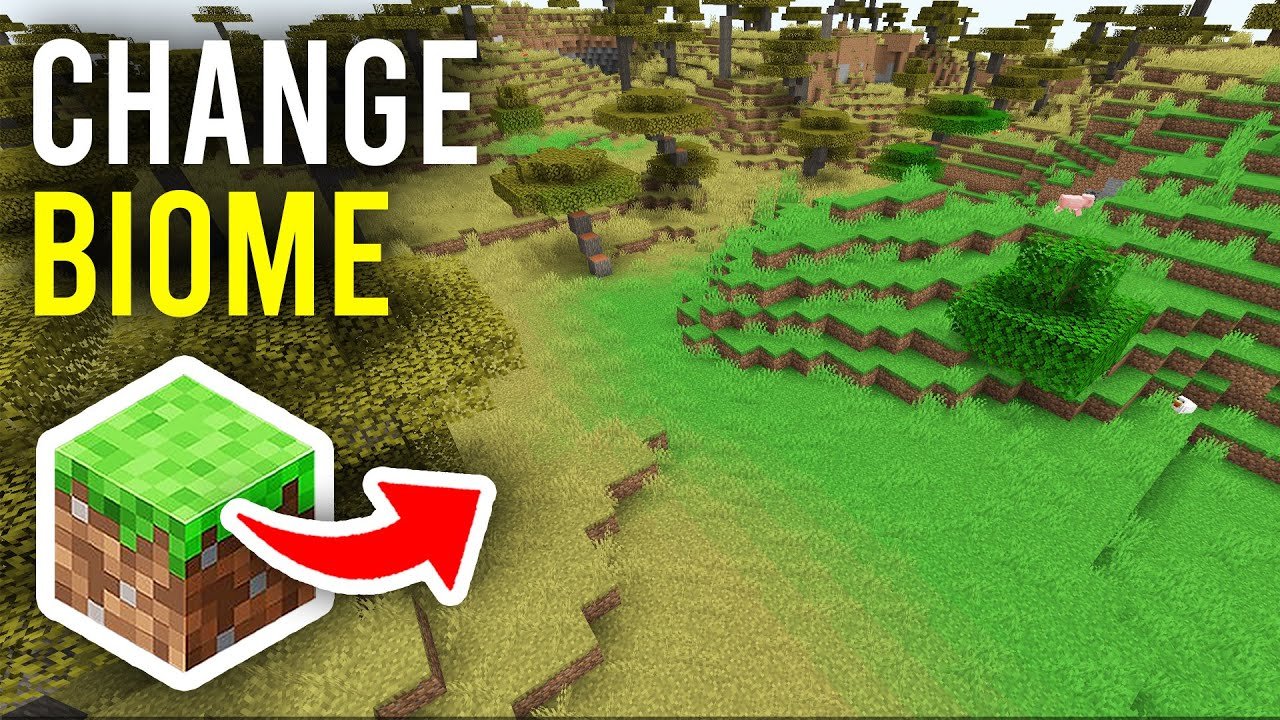
Ever wondered how to change biomes in Minecraft? You’re not alone. It’s a question that pops up when players want to customize or experiment with their worlds. Whether you’re curious about tweaking the environment for aesthetics, gameplay advantages, or building challenges, changing biomes is a wild ride of technical know-how mixed with creative flair. Let’s dive in and crack open what it takes to do this in 2026.
What Are Biomes In Minecraft?
Before changing anything, it’s essential to grasp what a biome is. Biomes are distinct ecological zones — like deserts, forests, or tundras — dictating climate, terrain, and mob behavior. Imagine your world as a vast theme park, and each biome is its own ride, with unique features and moods.
Why Change Biomes?
Changing biomes can serve multiple purposes:
- • Customizing your world’s environment for exploration or building
• Influencing mob spawns and weather patterns
• Creating thematic areas for your server or adventure map
• Experimenting with game mechanics and aesthetics
Methods To Change Biomes In Minecraft
The approach depends heavily on your edition and desired outcome. Here’s a breakdown.
1. Using Minecraft Commands
This method works primarily in the Bedrock Edition or through specific mods and tools in Java. Minecraft’s native commands support biome manipulation, but they can be tricky.
With Minecraft’s official biome replacement mechanics, you can use minecraft:replace_biomes in certain components for Bedrock, as detailed on the official Minecraft documentation. This lets you swap one biome for another in selected chunks.
Steps Using Commands:
- Ensure cheats are enabled in your world settings.
- Use command blocks or chat commands to execute biome changes.
- Type a command like
/fillbiome(Java Edition experimental feature) to target an area. - Confirm changes have applied by visiting the area.
2. World Editing Tools (Java Edition)
Mods like WorldEdit or tools such as Amulet Editor allow full biome editing. These are powerful, letting you edit large swaths easily, perfect for custom maps or servers.
With WorldEdit:
- Select your region with the wand tool.
- Use commands like
//setbiome<biome_name> to apply new biomes. - Save and reload your world to see changes.
This approach demands some technical savvy but yields the best control.
3. Seed and Chunk Manipulation
Every Minecraft world is generated using seeds and chunks. Some players edit world seed settings or use software to regenerate chunks with different biome data. It’s advanced and mostly used by mapmakers or server admins.
Check out Q&A from seasoned players discussing biome alterations on StackExchange’s Minecraft forum, for community-tested insights and tricks.
Things To Consider When Changing Biomes
- • Not all biome effects update immediately; some require chunk reload or game restart.
• Changing biomes can affect existing structures or mobs unexpectedly.
• Backup your worlds before attempting any major edits!
• Some mods/tools may conflict with Minecraft updates; always verify compatibility.
Example: Changing a Snowy Biome to Desert
Imagine a player’s home stuck in a snowy biome — freezing weather making farming impossible. Using WorldEdit, they select their base region and execute //setbiome desert. Suddenly, the snow disappears, replaced with sandy plains and cacti, revolutionizing gameplay in that spot.
Advanced Tips for Biome Customization
- • Combine commands and world edits for fine-grained control.
• Experiment with custom biome mods for unique blends.
• Use map viewers to visualize biome borders before editing.
• Use lighting and foliage mods to enhance biome realism.
Safety Tips and Troubleshooting
Biome edits can corrupt data if done recklessly. Here’s how to keep safe:
- ✅ Always back up worlds
✅ Test changes on a copy before live editing
✅ Keep mods and game versions updated
✅ Monitor performance after big edits
Summary
Mastering how to change biomes in Minecraft is a rewarding challenge in 2026 that mixes creative freedom with technical skill. Whether wielding commands, mods, or manual tweaks, the ability to morph environments opens endless possibilities in your gameplay and map-building adventures.
“Changing biomes reshapes not just terrain, but the vibe of your Minecraft story.”
Don’t hesitate to experiment — just keep backups handy! And remember, this skill puts you way ahead of the average explorer.

Source: www.youtube.com
Frequently Asked Questions
Can I change biomes using only in-game commands?
Yes, but primarily in Bedrock Edition or with experimental features in Java Edition. Commands like /fillbiome can do this over areas, though options remain limited without mods.
Do biome changes affect mob spawning?
Absolutely. Mobs spawn based on biome conditions, so changing a biome can alter which creatures appear, possibly changing game difficulty or resource availability.
Are there tools that make biome editing easier?
Definitely. WorldEdit and Amulet Editor let you select large areas and apply new biomes swiftly, preferred for Java Edition players wanting precise control.
Will changing biomes affect existing player builds?
It can. Some environmental changes like rainfall or foliage types might alter look and functionality of builds. Always back up first to avoid loss.
Where can I find a list of all Minecraft biomes to use for changes?
You can find detailed biome names and info on resources like the Minecraft Stack Exchange biome posts or official Minecraft wiki pages.

Christina is a technical guide writer and gaming enthusiast with years of experience breaking down complex game settings. Specializing in server optimization and game mechanics, they are dedicated to helping players seamlessly customize their Minecraft experience—from updating skins and usernames to managing technical version settings.