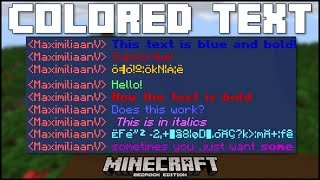
Ever wondered how to change color of text in Minecraft while you’re typing out your next epic sign or chatting with friends? You’re not alone. Minecraft’s text customization isn’t just a flashy add-on; it’s an art form, a way to inject personality into your worlds or simply organize your signs with style. So, how do you pull off those vibrant letters that jump off the blocky screen? Let’s break it down.
Why Change Text Color in Minecraft?
Coloring text in Minecraft isn’t just about aesthetics 🎨. It helps players communicate clearly, add personality, and improve readability in signs or chat messages. Whether you’re running a vibrant in-game store or decorating your enchanting room, colored text brings life and clarity.
- Minecraft supports 16 main color codes.
- Colors work in signs, chat, books, and commands.
- Minecraft Java Edition and Bedrock differ slightly in commands.
Understanding Minecraft Color Codes
At the heart of Minecraft’s text color customization are codes. Minecraft uses a special character followed by a digit or letter that represents a color or formatting
How Color Codes Work
Minecraft color codes start with the ‘§’ symbol (called the section sign) followed by a hexadecimal digit. For example, §1 makes the text dark blue. But here’s the kicker: typing ‘§’ directly in chat or signs won’t work in vanilla Minecraft! You have to rely on commands or plugins.
Minecraft Color Codes Table
| Code | Color | Hex Approx. |
|---|---|---|
| §0 | Black | 000000 |
| §1 | Dark Blue | 0000AA |
| §2 | Dark Green | 00AA00 |
| §3 | Dark Aqua | 00AAAA |
| §4 | Dark Red | AA0000 |
| §5 | Dark Purple | AA00AA |
| §6 | Gold | FFAA00 |
| §7 | Gray | AAAAAA |
| §8 | Dark Gray | 555555 |
| §9 | Blue | 5555FF |
| §a | Green | 55FF55 |
| §b | Aqua | 55FFFF |
| §c | Red | FF5555 |
| §d | Light Purple | FF55FF |
| §e | Yellow | FFFF55 |
| §f | White | FFFFFF |
Changing Text Color on Signs
Signs in Minecraft naturally don’t support color input by typing color codes. That’s a bummer, but not the end of the road. You can use commands or third-party tools. For example, using the command /data merge block can let you add color to sign text through NBT tags, but this requires operator permission and is mostly for advanced users, server admins, or map creators.
If you’re hands-on and love video tutorials, check out this guide on changing sign text color in Minecraft that visually explains the process.
Using Commands to Change Text Color
Commands are your gateway to easily change text color, especially in chat or books.
Basic Chat Color Command
You can send colored messages in chat by using JSON text formatting within the /tellraw command in Java Edition. Example:
/tellraw @a {"text":"Colored Text","color":"red"}
This command will send the text ‘Colored Text’ in red to all players. Using JSON components, you can mix colors and styles.
Colored Text in Books
Books allow formatting and colors through commands or third-party editors. The official Minecraft formatting for books includes embedded color tags.
Want a quick visual? Here’s an excellent Minecraft books formatting tutorial demonstrating the commands.
Customize Text Color in Minecraft Education Edition
If you’re playing Minecraft Education Edition, changing text color is even simpler and more accessible to younger players or educators. The Education Edition includes simpler command blocks and GUI options to select colors directly.
This is demonstrated well in the video tutorial on changing color of text in Minecraft Education Edition.
Practical Tips for Changing Text Color
- Always use supported color codes or JSON formats.
- Remember commands require cheats enabled or operator status.
- Double-check versions; Bedrock and Java commands sometimes differ.
- Experiment with color combos for readability and style.
- Use third-party text generators or mods for ease on single-player.
Common Mistakes to Avoid
- Typing ‘§’ directly in chat or signs without command usage.
- Ignoring version differences and getting errors.
- Overusing bright colors causing eye strain or confusion.
How Minecraft Color Codes Relate to Your Gameplay
Imagine building a colorful, clearly marked trail in your vast Minecraft world, where every sign boldly stands out in its own bright hue, avoiding confusion during your adventures. That’s the real magic behind mastering text colors.
“Changing text color is like speaking a visual language within Minecraft — it enhances clarity and expression.” – Minecraft Pro Player
Wrapping Up Your Colorful Journey
If you’re still wondering how to change color of text in Minecraft, remember it’s all about using codes, commands, and sometimes a bit of creativity. Whether you’re decorating signs or chatting flamboyantly with fellow players, colored text makes communication vivid. Customize boldly and safely; mistakes are just part of crafting your style!

Source: gaming.stackexchange.com
Frequently Asked Questions
Can I use colored text in Minecraft chat without commands?
In vanilla Minecraft, you cannot directly color your chat text without commands or plugins. Regular chat messages do not support color codes typed manually.
How do Minecraft color codes work?
They are special formatting codes using ‘§’ plus a hex character that define text color or style in chat, signs (via commands), and items.
Is there a difference between Java and Bedrock Editions for text color?
Yes, Java Edition supports advanced JSON commands for colored text, while Bedrock Edition offers simpler or slightly different command syntax.
Can I use colors on Minecraft signs in survival mode?
Not directly. Coloring sign text usually requires commands or mods, which are typically only available in creative mode or with cheats enabled.
What’s the easiest way to apply colors to book text?
You can use the /give command with JSON formatting or utilize third-party book editors designed for Minecraft to input colors and styles safely.

Christina is a technical guide writer and gaming enthusiast with years of experience breaking down complex game settings. Specializing in server optimization and game mechanics, they are dedicated to helping players seamlessly customize their Minecraft experience—from updating skins and usernames to managing technical version settings.