Ever opened Minecraft and thought, “How do I switch this thing to my language?” It’s surprisingly simple once you know where to look. Today, we’re going to dive into How To Change Language On Minecraft, because let’s face it, playing in a language you understand makes the whole experience way better. Whether you’re a Java fan or a Bedrock player on your tablet, sticking with English isn’t the only option anymore.
Why Change Minecraft Language?
Changing the language isn’t just for newcomers. Sometimes, you need the Creeper’s hiss to sound just right, or maybe explaining gameplay in your own language makes multiplayer chats smoother. Plus, Minecraft supports dozens of languages, so everyone can enjoy the charm in their native tongue, making the user interface friendlier and gameplay more immersive.
- Minecraft includes over 90 languages.
- Language options vary slightly between Minecraft editions.
- Changing language swaps all UI and in-game text instantly.
How To Change Language On Minecraft: Step-by-Step Guide
Ready for the magic? Here’s what you do across platforms:
Minecraft Java Edition
- Launch Minecraft and get to the main menu.
- Click on Options.
- Hit Language. You’ll see the language list pop up.
- Scroll or search for your preferred language. You’ll see preview text to test fonts.
- Click it, then confirm by pressing Done.
- Enjoy Minecraft in your own language!
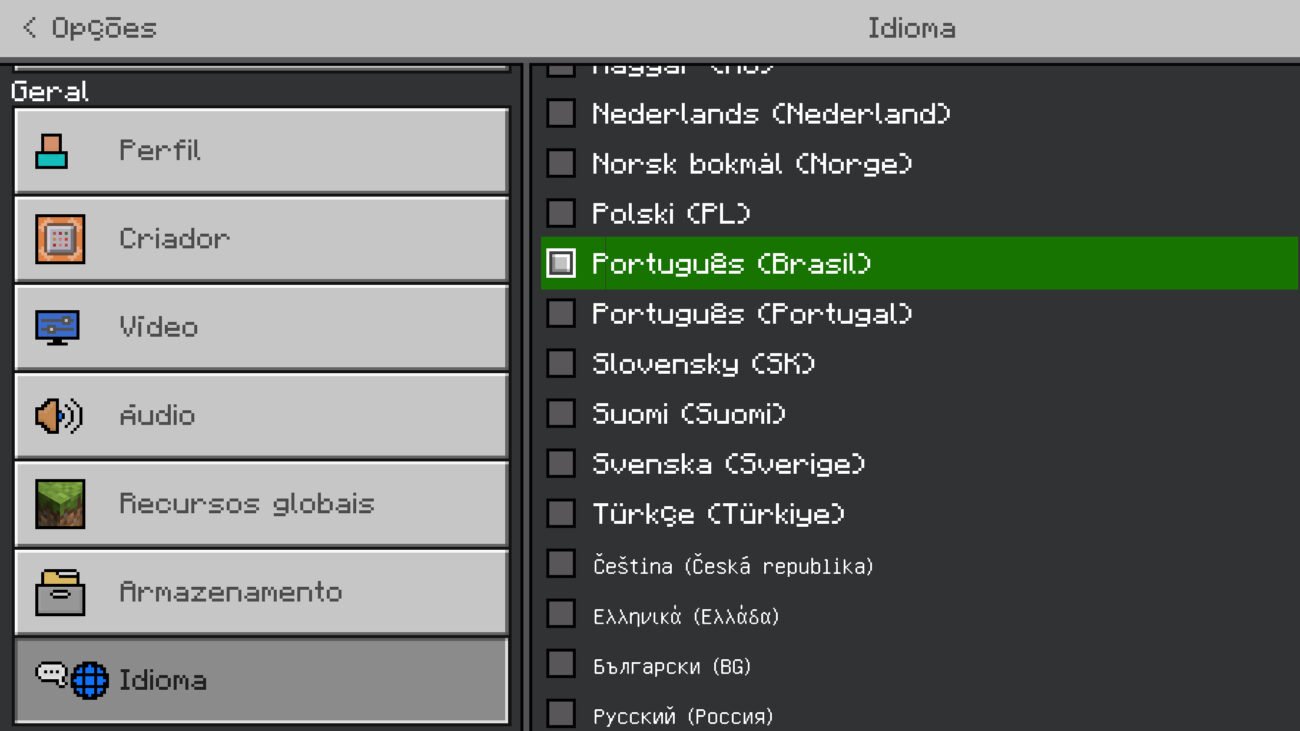
Minecraft Bedrock Edition (Windows 10, Mobile, Consoles)
- Open Minecraft and navigate to the Settings menu.
- Scroll down to Language. Note: On some consoles, language settings link to your system settings.
- Select your desired language from the list.
- The game will reload to apply the new language.
If you’re on Nintendo Switch, language settings are managed through the console preferences, but Minecraft supports various languages natively. Visit the official Nintendo page for Minecraft Switch for additional details.
Common Language-Related Issues and Fixes
Sometimes, the language won’t stick, or you might find some text still showing in English despite changing the setting. Here’s why:
- Cache glitches: Restart your game or device to refresh language packs.
- Edition mismatch: Make sure you’re changing language in the correct version.
- System overrides: Consoles like PlayStation or Switch might force language based on system preferences.
Master these, and language will never be a barrier again.
How To Change Language On Minecraft: Quick Tips
- Always update your Minecraft version to access new languages.
- Explore less common languages to enjoy unique scripts and localizations.
- Use video tutorials when in doubt for visual step-by-step help.
Understanding Minecraft Language Packs
Essentially, Minecraft’s language is governed by resource packs named language packs. Want French? A “fr_fr.json” does the job. Curious about Education Edition’s language options? They’re slightly different and tailored for classroom use — check out Minecraft: Education Edition language settings for more insights.
Pro Tips for Minecraft Language Customization
Want to go deeper? Advanced players can customize language files located inside the game’s resource directory. Editing these requires a bit of JSON knowledge but allows full control over terms—great for modders or educators.
Making the Most Out of Your Language Settings
Switching the language does more than translate text; emojis, signs, achievement names, and tutorial prompts adjust as well — fueling a more authentic experience. Curious how it looks before switching? Videos like How to change language in Minecraft Tutorial show comparisons that might persuade you to try a new tongue.
“Changing your Minecraft language is like giving the game a fresh coat of paint—everything feels new again.”
Summary: Effortless Language Changes for Enhanced Gameplay
In sum, knowing How To Change Language On Minecraft sharpens your game experience. With device-specific steps and troubleshooting tricks in hand, there’s no excuse to stick to default English if it’s not your jam. Keep your settings current, watch a quick tutorial, and jump into the global Minecraft community feeling right at home.

Source: www.youtube.com
Frequently Asked Questions
Can I change my Minecraft language on any device?
Yes! Whether you play on PC, consoles, or mobile, Minecraft allows language changes, though the steps might differ slightly according to the edition.
Will changing language affect saved worlds or game progress?
No, changing the language only adjusts UI and text; your saved games and progress remain untouched.
What if my preferred language isn’t showing up in Minecraft?
Minecraft supports many languages, but if yours is missing, ensure your game is updated. Sometimes community or mod packs add languages not included by default.
Does changing the language in Minecraft affect multiplayer chat?
The interface language changes, but chat depends on the language players use; however, menus and messages will appear in the chosen language.
Are there risks in editing Minecraft language files?
Editing language files requires care as mistakes might cause in-game text errors; always back up before making changes and avoid modifications if unsure.
How can I reset Minecraft language back to English?
Just follow the language change steps and select English from the list to revert immediately.

Christina is a technical guide writer and gaming enthusiast with years of experience breaking down complex game settings. Specializing in server optimization and game mechanics, they are dedicated to helping players seamlessly customize their Minecraft experience—from updating skins and usernames to managing technical version settings.