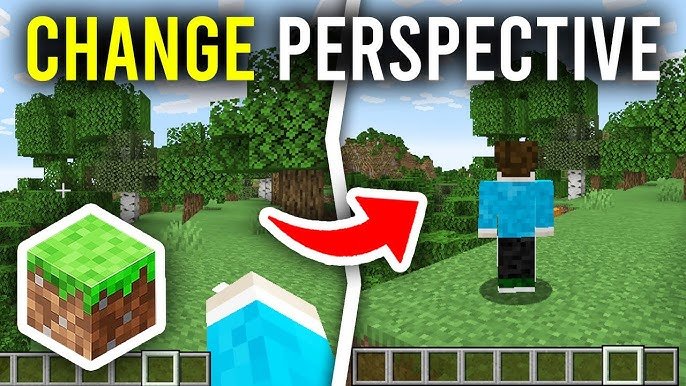
Ever wondered how to change POV in Minecraft and instantly spice up your gaming experience? Imagine zooming out like a wizard surveying their kingdom or zooming in like a stealthy ranger tracking elusive prey. Minecraft lets you switch between several perspectives easily, but knowing all the tricks and commands is key to mastering your view. You’ll want to start with the basics: toggling between first-person and third-person views changes everything. This guide breaks down how to switch your view dynamically in Minecraft as of 2026, including in Java and Bedrock editions, so you can play like a pro.
Understanding POV Options in Minecraft
The game offers three main views: first-person, third-person back, and third-person front. Each creates a different feel:
- First-person view lets you experience the world through your character’s eyes, perfect for mining and combat.
- Third-person back shows your whole character from behind, great for building and seeing your avatar’s movements.
- Third-person front turns the camera to face your character, handy for selfies or checking armor.
Changing POV on PC (Java Edition)
To switch views in Java Edition, simply press the F5 key. Each press cycles through the three perspectives. If you’re using a laptop, you may need to press Fn + F5. This instant toggle makes it fast and intuitive.
Want more camera control? Mods like McCam let you adjust the camera angles further, but that’s for advanced users.
Additional Camera Control Commands
Beyond toggling views, you can:
- Use the debug screen (F3) to check coordinates.
- Enable cinematic camera in settings for smoother movement.
Changing POV on Minecraft Bedrock Edition (Mobile and Consoles)
Mobile players can access the POV change button located in the settings gear icon on the HUD. Tap the icon and switch from first to third-person views instantly. On consoles, use the D-pad or specific controller buttons to toggle views depending on the console version.
Bedrock added some updated camera preset features recently; you can read about the third person camera preset system for immersive controls.
Why Change POV in Minecraft?
Sometimes it’s about nostalgia seeing yourself build pixel castles. Other times it’s strategic—third-person mode provides better spatial awareness for PvP or avoiding mobs. Occasionally, you want cinematic shots for your Minecraft videos or trolling friends.
Advanced Tips for Camera Views
- Use smooth camera mod for seamless transitions.
- Customize your field of view (FOV) in options for wider vision.
- Combine Perspective with Shader Packs for cinematic effects.
Common Issues & Fixes When Changing POV
- POV toggle key not working? Check if your keyboard’s F-keys require Fn toggle.
- On mobile, ensure your Minecraft client is updated to access new buttons.
- For mods, verify compatibility with Minecraft 2026.
How to Record and Share Your POV Changes
Want to flaunt those cool perspective shots? Use built-in screen recorders on consoles or apps like OBS on PC. Capture your POV swaps easily during gameplay to create engaging content. See a cool tutorial on changing camera view in Minecraft Java Edition that shows handy tricks for recording.
Pro Tips: Use POV to Navigate Better
Survival can be brutal. Using third-person gives you extra eyes for spotting ambushes. Creative mode? Use first-person for precision placement. Minecraft isn’t just block stacking—it’s a vision game!
Related Minecraft Camera Controls
- Zoom via mods (e.g., Optifine)
- Camera shake effects for immersive raids
- Tracking camera for cinematics on Bedrock
How To Change Pov In Minecraft: Final Thoughts
There’s no excuse to be stuck with just one view anymore. How To Change Pov In Minecraft is as easy as a tap or keystroke, but mastering when and why you switch POV elevates your game style drastically. Never miss a detail, fight smarter, build better, or record epic moments with fluid camera controls. Dive into your settings now and try all perspectives to see your Minecraft realms from fresh eyes.
To get started today, check tutorials like those showing how to go into third person in Minecraft and how to change perspective in Minecraft PE. Game on! 🚀

Source: www.youtube.com
Frequently Asked Questions
How do I switch between first and third-person views in Minecraft?
On PC Java Edition, press the F5 key to cycle through first and third-person perspectives. On Bedrock Edition, tap the perspective button in the settings menu.
Is it possible to customize the camera angle in Minecraft beyond the default views?
While Minecraft offers three default POVs, you can use mods like McCam on Java Edition to get custom camera angles or use Bedrock’s camera preset system for advanced setups.
Why might my F5 key not change my Minecraft perspective?
You might need to press Fn + F5 if you’re on a laptop with function key locks. Also, ensure no other program is intercepting the key.
Can changing POV affect gameplay strategy?
Absolutely. Third-person mode provides greater spatial awareness which is useful in combat, while first-person offers better accuracy for mining and building.
Does changing POV have any impact on multiplayer servers?
Your view changes only affect your client and do not influence how others see you in multiplayer environments.
How do mobile players change their POV in Minecraft?
Mobile players use the on-screen settings to toggle POV, usually found by tapping the gear icon and selecting the camera view option.

Christina is a technical guide writer and gaming enthusiast with years of experience breaking down complex game settings. Specializing in server optimization and game mechanics, they are dedicated to helping players seamlessly customize their Minecraft experience—from updating skins and usernames to managing technical version settings.