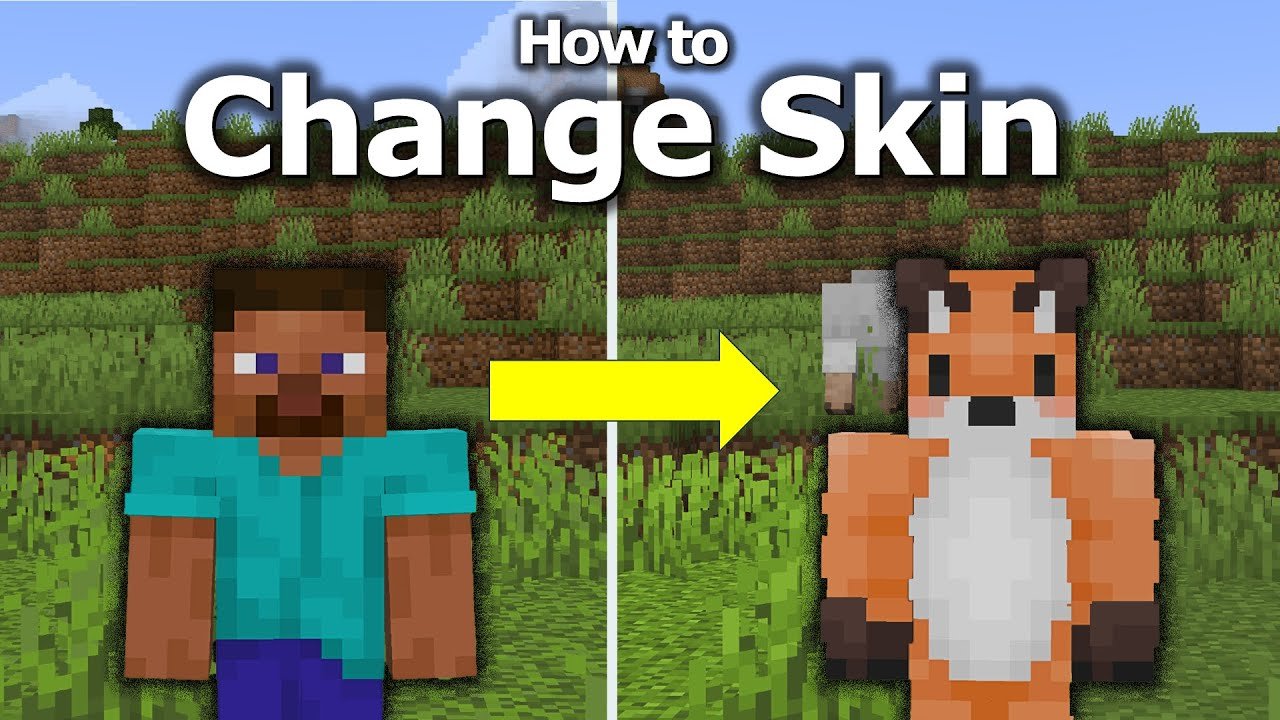
Ever felt your Minecraft avatar just doesn’t represent your vibe anymore? Minecraft How To Change Skin is exactly what you need in your toolkit, especially if you want to stand out on multiplayer servers or just jazz up your solo adventures. Right from the get-go, knowing how to switch up your Minecraft skin keeps the game fresh and personal — no cookie-cutter characters allowed! 🚀
Basics of Minecraft Skins
Minecraft skins are basically the costumes your character wears. They’re images wrapped around your player model. Changing skins can be as simple as swapping files or using official game tools. Since 2026 gaming demands customization, understanding these basics is key before jumping into the nitty-gritty.
Why Change Minecraft Skin?
- Express individuality on servers
- Stay fresh with seasonal or themed skins
- Use custom designs from community creators
Imagine boasting a steampunk wizard or futuristic cyborg — you’re no longer just a block-shaped soldier but a unique explorer in a vast pixel cosmos!
Minecraft How To Change Skin: Detailed Steps
For Minecraft Java Edition
- Open your web browser and go to the official Minecraft skin upload page.
- Log in with your Mojang or Microsoft account.
- Click “Browse” to select your custom or downloaded skin PNG file.
- Choose between ‘Classic’ or ‘Slim’ model skins.
- Hit “Upload” and launch Minecraft to see your new skin in action!
For Minecraft Bedrock Edition (Windows 10, Console, Mobile)
Generally, Bedrock handles skins a bit differently, using either in-game skin packs or manual uploads.
- Open Minecraft Bedrock Edition.
- Go to the character creator from the main menu.
- Select “Edit Character” then “Owned” tab to upload local skins.
- Import your skin file if you have a custom PNG.
- Save changes and enjoy your new look!
💡
How to Create or Modify Your Own Minecraft Skin
Want something truly unique? Creating your own skin is easier than it sounds.
- Use dedicated skin editors like Skindex or official apps.
- Paint your design pixel by pixel or use templates.
- Save your skin as a .png file, ensuring 64×64 resolution.
- Upload the skin following steps above.
💬
“Think of it like dressing your Minecraft self for Halloween every day — all in your pixel power!”
Common Mistakes to Avoid
- Uploading skins that don’t comply with the right size or format.
- Confusing Bedrock and Java skin processes and files.
- Forgetting to log out or clear cache if skins don’t update properly.
- Using skins from unreliable sources that might harm your device.
Tips for Best Minecraft Skin Experience
- Always save backups of your favorite skins.
- Test your skin on different servers to check visibility.
- Combine skin changes with resource packs for added flair.
- Use skin editors that preview 3D models live.
Where to Find Custom Minecraft Skins Safely?
The Minecraft community offers huge libraries of skins, but safety is crucial. Trusted sites like Skindex or the official Minecraft custom skin page provide vetted options. For mobile users, apps like Skin Creator for Minecraft PE also deliver solid options, though always check permissions and reviews. 🛡️
For more technical details on skin pack formatting, the official Microsoft page for Minecraft skin pack JSON is an excellent resource for creators looking to dig deeper.
Advanced Skin Customization and Troubleshooting
Want to go beyond basic skins? Modding tools and editors let you tweak the transparency, hat layers, and even animations in some cases. But be cautious — improper edits can glitch your appearance or even crash the game. When stuck, resetting skins or reinstalling Minecraft can fix persistent issues.
📑
Summary of Minecraft How To Change Skin
Changing skins in Minecraft is a quick way to personalize your gaming experience and showcase creativity. Whether you’re switching skins on the Java Edition or using the character creator in Bedrock, the process taps your style and gamer soul alike. From crafting your unique skin to safely downloading community designs, the journey is rewarding and fun. Don’t forget: Minecraft How To Change Skin is your gateway to expressing digital identity in this blocky universe — keep it playful, creative, and safe! 🚀

Source: www.youtube.com
Frequently Asked Questions
How do I change my Minecraft skin on Java Edition in 2026?
Log into the official Minecraft site, navigate to the skin upload page, then choose and upload your skin PNG file. Select the model type, upload, and launch the game.
Can I use the same skin file for Minecraft Bedrock and Java editions?
Generally no. Bedrock skins require specific formatting and sometimes different resolutions; always check compatibility before uploading.
What if my skin doesn’t update after uploading?
Try logging out and back in, clear cache, or restart the Minecraft launcher. If issues persist, verify your file format and size.
Where can I find safe and free custom Minecraft skins?
Trusted websites like Skindex and the official Minecraft skin upload page offer a wide selection of safe skins you can download and upload free of charge.
Is creating my own skin difficult?
Not at all! Using online skin editors or apps, even beginners can create a unique Minecraft skin pixel-by-pixel with guidance and a little patience.
Can changing skins affect gameplay?
No gameplay impact occurs; skins are purely cosmetic, letting you express yourself without altering game mechanics.

Christina is a technical guide writer and gaming enthusiast with years of experience breaking down complex game settings. Specializing in server optimization and game mechanics, they are dedicated to helping players seamlessly customize their Minecraft experience—from updating skins and usernames to managing technical version settings.