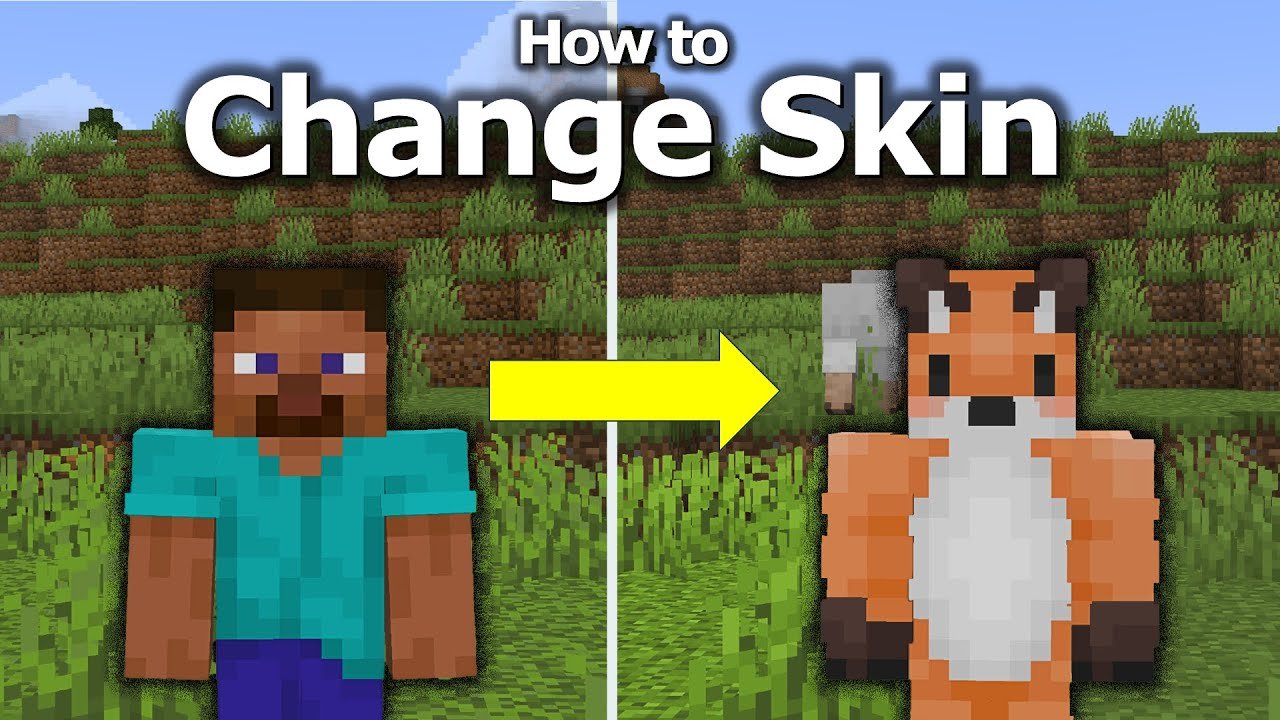
Ever found yourself staring at the dull, default Minecraft avatar and wondered how to flip that switch? How To Change Skin In Minecraft has become one of the top questions buzzing through the blocky worlds in 2026. Whether you’re rocking Java Edition or hopping on Bedrock, the skin defines your presence—your digital self-expression. So yeah, it’s imperative to get this right and quick.
Understanding Minecraft Skins
Skins are essentially texture files wrapped around your character. They can be as simple as a new shirt color or as wild as an entire new character (think superheroes, animals, or even video game legends). Minecraft skins come mainly in two models right now: Classic and Slim (sometimes called Alex model). Understanding these models helps avoid awkward proportions or clipping issues.
What Editions Support Changing Skins?
- Minecraft Java Edition (PC)
- Minecraft Bedrock Edition (Windows 10, Xbox, Mobile, Switch)
Both let you flaunt custom skins but differ on upload methods and limitations. If you’re curious about uploading unique designs, you’ll want the Java route.
For a detailed dive on custom skins, even editing your own, check out the official Minecraft Java Edition skin customization guide.
How To Change Skin In Minecraft: Java Edition
The Java Edition deserves a special shoutout because it gives players max freedom for customization—a pure playground. Alright, here’s the no-fluff walkthrough:
- Find Your Skin: Head to popular websites like MinecraftSkins.com or create your own on apps like Skindex or Nova Skin.
- Download the Skin File: Make sure it’s a .png and matches the size 64×64 pixels (standard).
- Go to Minecraft.net Profile: Visit the official Minecraft profile page and log in with your account.
- Upload Your Skin: Click to change skin, upload the .png file, and choose the model type (Classic or Slim).
- Launch Minecraft: Start the game, and your avatar will reflect the new skin as soon as you’re in the world.
This simple routine is the backbone for skin swaps on the Java version. If you prefer a visual walkthrough, this video on changing Minecraft skins in Java showcases pro tips for smooth transitions.
How To Change Skin In Minecraft: Bedrock Edition
Now, if you’re part of the Bedrock crowd (which includes consoles and mobile), things are slightly different but still manageable.
- Launch Minecraft Bedrock Edition and navigate to the dressing room.
- Use Pre-made Skins or Skin Packs: You can instantly equip skins from marketplace packs or free collections.
- Upload Custom Skins: You’ll need to tap the ‘Choose New Skin’ option and import a compatible .png file from your device.
- Choose Your Model Type: Pick the classic or slim models just like Java.
Beware: In Bedrock, skin changes sometimes require a game restart to take full effect depending on your platform. For more technical references, check out the official Skin Pack JSON reference from Microsoft.
Customizing Skins Yourself
If cookie-cutter skins aren’t your style, crafting your own custom look is the way to stand out. Pick an image editor or skin studio app that supports transparency to paint pixel by pixel. If it sounds tedious, that’s because it is. But there’s unmatched satisfaction in wearing your self-made design.
Tips for Designing Your Unique Skin
- Keep the canvas at 64×64 pixels.
- Save backups frequently to prevent losing progress.
- Test skin in-game often to spot clipping or odd fit.
- Explore shading and pixel techniques for depth.
Want to see step-by-step creative approaches? The channel revealing 12 pro tips for perfect Minecraft skins is a solid resource to get artistic muscles flexed.
Troubleshooting Common Skin Problems
Not seeing your updated skin after uploading? Here’s what often kills the vibe:
- Cache delays on Minecraft servers or your client.
- Incorrect file format or dimensions.
- Mismatch between model type and skin design.
- Attempting changes on offline or cracked accounts.
Fix these by clearing cache, ensuring correct upload specs, and verifying Java vs Bedrock differences.
Why Changing Your Minecraft Skin Matters
It’s not just vanity. Skins boost player identity and creativity—giving players a psychological edge and a social badge. Think of it as leveling up not just your character but your whole vibe in multiplayer games.
Developer & Modder Skins
In 2026, modding communities give players ultra-custom skin experiences, even adding animations. But these require advanced mod setups and are mostly for Java Edition enthusiasts ready to experiment.
Conclusion: Final Word on How To Change Skin In Minecraft
By now, you’re ready to tackle How To Change Skin In Minecraft head-on on any platform. Java Edition offers the most control. Bedrock makes it accessible for everyone else. Customize boldly, troubleshoot smartly, and flaunt that new digital look 🚀. Remember, skin swapping is an art and a social move—don’t settle for basics. Wear your pixel identity with pride in 2026’s ever-evolving Minecraft world!

Source: www.youtube.com
Frequently Asked Questions
Can I change my Minecraft skin for free?
Yes, both Java and Bedrock editions allow free skin changes using custom designs or free downloadable skins from trusted websites.
How often can I change my skin in Minecraft?
You can change your Minecraft skin as often as you like. There are no limits; just upload a new skin file each time on your profile or device.
Do custom skins work in multiplayer?
Absolutely, your custom skin will appear to other players in multiplayer servers as long as they are connected to the internet and your account is authenticated.
What’s the difference between Classic and Slim skins?
Classic skins have wider arms (4-pixel width), while Slim (Alex) skins have narrower arms (3-pixel width). Choosing the wrong model might make your skin look awkward.
Where can I find safe Minecraft skins?
Trusted sites like MinecraftSkins.com and Skindex provide large libraries of safe skins. Always avoid suspicious sites to prevent malware.
Can I create skins on mobile devices?
Yes! Apps like ‘Skin Editor for Minecraft’ let you design and change skins directly from your smartphone or tablet.
What if my skin doesn’t update after upload?
Try restarting Minecraft and clearing any cached data. Make sure the file meets size and format requirements.
For more detailed insights and step-by-step instructions, you can watch this Minecraft PE skin change Q&A post or explore manual skin changing guides on gaming forums.

Christina is a technical guide writer and gaming enthusiast with years of experience breaking down complex game settings. Specializing in server optimization and game mechanics, they are dedicated to helping players seamlessly customize their Minecraft experience—from updating skins and usernames to managing technical version settings.