Ever tried jumping into Minecraft only to realize you’re stuck with a version that won’t play nice with your favorite mods or multiplayer servers? Knowing how to change version of Minecraft is crucial in 2026, especially given how quick new updates roll out and how diverse the Minecraft community’s needs have become. Whether it’s Java Edition or Bedrock, switching versions might seem mysterious at first, but it’s wildly manageable once you get the hang of it. 🎮
Getting Started: Why Change Your Minecraft Version?
Minecraft updates bring new features, but they also can break mods or server compatibility. Maybe you’re playing a beloved older map, or your friends run a server on version 1.18.2 while you’re stuck on 1.20.2. Switching versions is how you align your client with that. Plus, testing snapshots or older builds helps explore the game’s evolution or troubleshoot issues.
Understanding Minecraft Versions
- Java Edition Versions – officially supported on PC with flexible version controls.
- Bedrock Edition Versions – mostly automatic updates on consoles and devices.
- Snapshots – experimental builds for testing new features early.
- Legacy versions – older releases for compatibility with mods and certain servers.
How To Change Version Of Minecraft Java Edition
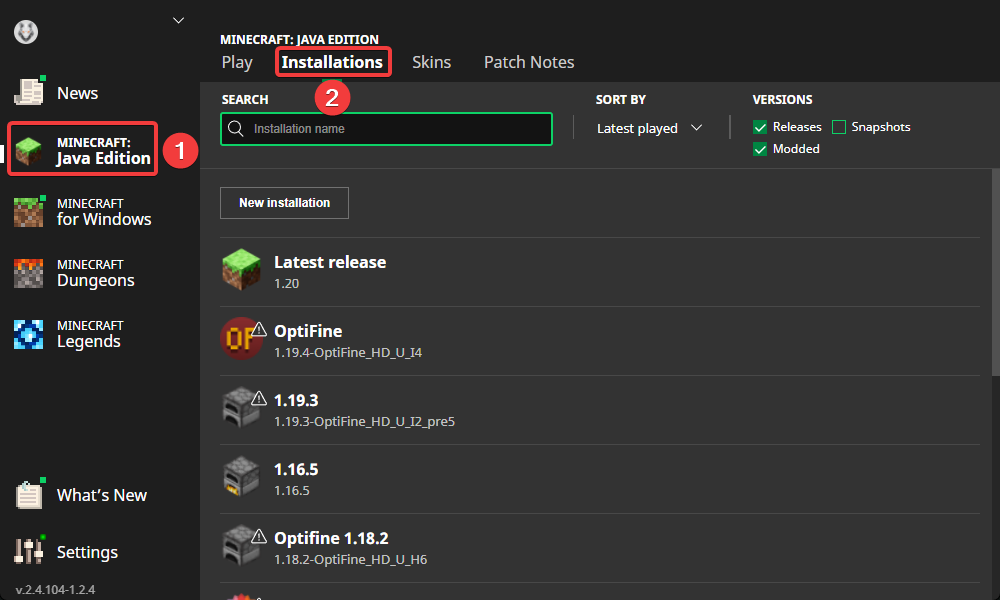
Changing versions in Java Edition is straightforward: you use the official Minecraft launcher’s profile system to select or add different game versions effortlessly. Here’s the drill:
- Open the Minecraft launcher on your PC or Mac. 🚀
- Go to the ‘Installations’ tab. This is where all the magic begins.
- Click ‘New Installation’ to create a profile for the version you want.
- Give it a unique name to avoid confusion.
- In the ‘Version’ dropdown, pick your target Minecraft version (like 1.19, 1.20, or any snapshot).
- Choose your game directory if you want separate saves or mods for that version.
- Save the installation, then pick it from the ‘Play’ dropdown on the main screen.
- Hit Play and enjoy the selected Minecraft version.
Want to explore how major updates work? Check out the official guide on Minecraft’s new version numbering system to understand today’s update landscape clearly.
Tips For Java Version Switching
- Backup worlds before switching.
- Keep multiple installations for easy toggling.
- Install Forge or Fabric mods in version-specific folders.
- Beware of outdated mods with newer game versions.
Changing Version In Minecraft Bedrock Edition
For Bedrock players on consoles or mobile, version control is different. Updates are mostly automatic through app stores or system updates. But there are a couple of tricks:
- Use the device’s app management tools to install older versions if available.
- On Windows 10/11, you can opt into Minecraft Beta to test upcoming builds via Xbox Insider Hub.
- Reinstalling the game from a saved backup can revert to an older version temporarily.
Bedrock differs from Java in flexibility—switching isn’t as native or user-friendly but can be managed for specific use cases.
Common Traps and How To Avoid Them
Switching might cause headaches if:
- You have mods incompatible with the version you choose.
- Your server version doesn’t match your client.
- You forgot to backup worlds before changing versions.
Always keep backups and double-check mod and server versions to prevent corrupted saves or crashes.
Using Third-Party Launchers for Version Management
If the official launcher feels cumbersome, consider popular third-party launchers like MultiMC or GDLauncher. These provide advanced version management, mod integration, and quick switching between countless configurations.
Troubleshooting Version Switching Issues
- If your game crashes after switching, check your mods.
- Verify game files through the launcher if available.
- Update your Java runtime environment for best compatibility.
- Check community forums for bugs related to specific versions.
The Future Of Minecraft Versions
Looking ahead in 2026, Mojang continues experimenting with version handling and new features, witnessed through their latest tutorial on changing Minecraft Java Edition versions step by step. Staying updated and switching versions as needed ensures you have the best experience tailored exactly for your style and needs.

Source: www.youtube.com
Frequently Asked Questions
Can I switch Minecraft versions without losing worlds?
Yes, but be cautious. Always back up your worlds before switching versions because some updates may change world data compatibility.
How do I play Minecraft snapshots?
Snapshots are available in the Java Edition launcher under ‘Installations’ by selecting the latest snapshot releases for experimental testing.
Is there an easy way to switch versions on consoles?
Console versions auto-update. You might need to reinstall older versions manually or join beta programs via platforms like Xbox Insider Hub.
Do mods work with all Minecraft versions?
No, mods are version-specific. Always use mods compatible with the Minecraft version you’re running to avoid crashes and glitches.
Where can I find official Minecraft version information?
The best source is the official Minecraft website’s update section, such as the Minecraft new version numbering article.
How do third-party launchers help?
Third-party launchers like MultiMC provide streamlined version switching, mod management, and isolated game instances, simplifying multiple version use cases.

Christina is a technical guide writer and gaming enthusiast with years of experience breaking down complex game settings. Specializing in server optimization and game mechanics, they are dedicated to helping players seamlessly customize their Minecraft experience—from updating skins and usernames to managing technical version settings.