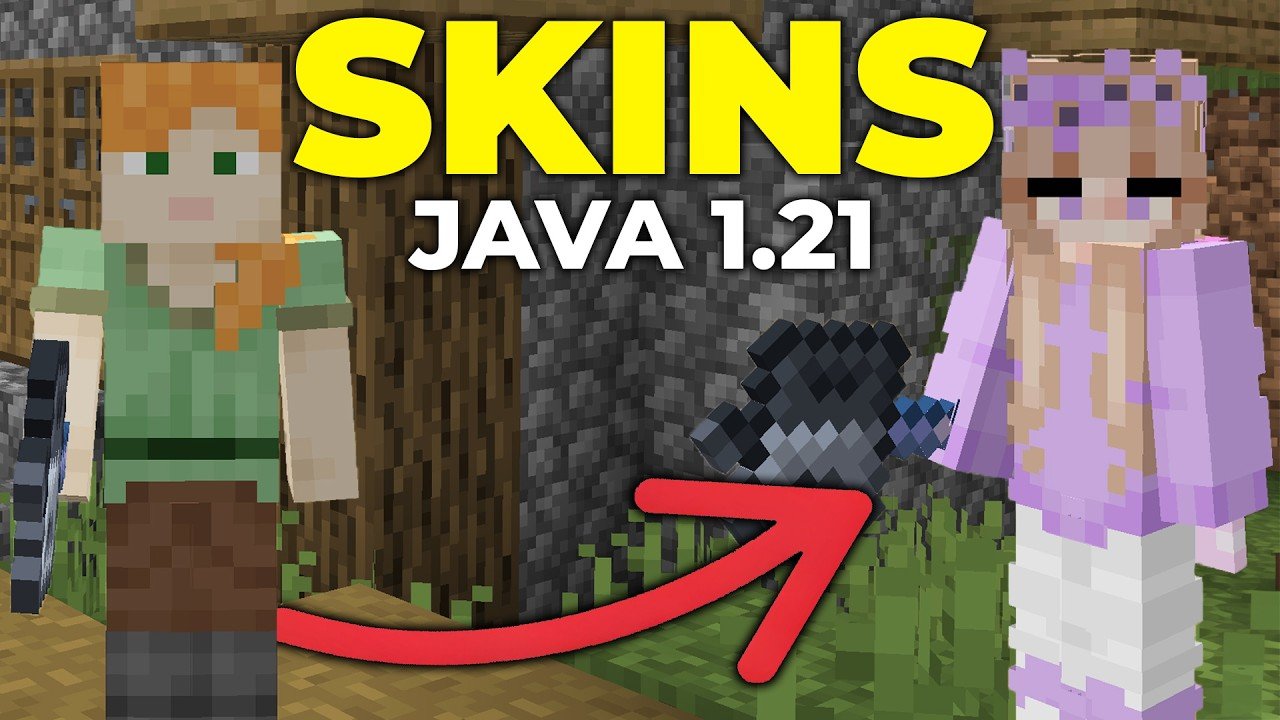
Ever felt stuck trying to switch up your in-game look on Minecraft Java Edition? Changing your skin isn’t just about aesthetics; it’s a way to own your identity in the pixelated world. How To Change Minecraft Skin Java is easier than it looks, and by the end of this, you’ll be sporting a fresh character that fits your vibe perfectly. 🚀 Ready to ditch that default Steve for something that screams you?
Why Change Your Minecraft Skin?
First off, let’s be clear—your skin is your essence in Minecraft. It’s the mini-avatar everyone sees on servers or while playing with friends. Want to stand out with a superhero suit or blend in as a stealthy ninja? Your skin choice defines that. Plus, occasional skin changes keep the game feeling fresh.
What You Need Before Changing Your Skin
- A valid Minecraft Java Edition account
- Access to minecraft.net via browser
- A skin file (PNG image), either custom-made or downloaded
- Basic internet connection
Step-By-Step Guide: How To Change Minecraft Skin Java
- Prepare Your Skin File: Create or download a PNG skin file designed for Java Edition. The image should be either 64×64 pixels or 64×32 pixels, following Minecraft’s template.
- Log Into Minecraft.net: Head to the official minecraft.net site, and sign in with your Java Edition credentials.
- Navigate to Profile: Within your account dashboard, find the ‘Skin’ section—this is your customization hub.
- Upload Your Skin: Click ‘Choose File’ and select your prepared PNG skin. You can preview before applying.
- Select Model Type: Minecraft Java allows ‘Classic’ (Steve) or ‘Slim’ (Alex) models. Choose the one matching your skin’s design.
- Save & Apply: Hit ‘Upload’ or ‘Save’ to confirm. About a few minutes later, launch Minecraft, and your new skin should be visible.
💡 Remember: Changes might not be instantaneous across all servers because of caching, so give it a bit if it doesn’t show immediately.
How To Make Your Own Minecraft Skin for Java
If you’re itching to design from scratch, grab tools like Skindex Editor or NovaSkin, popular web-based editors that let you paint pixel-perfect skins. These are user-friendly, great for beginners and seasoned skin crafters alike.
- Create a 64×64 or 64×32 PNG canvas
- Paint layer by layer: head, body, arms, legs
- Test with a preview pane to avoid weird shapes or mismatched pixels
- Save your final work and upload as described before
Common Mistakes When Changing Minecraft Skins
Many players face issues like:
- Trying to use a skin resolution not compatible with Java Edition (like Bedrock skins)
- Uploading corrupted or incorrectly formatted files
- Forgetting to choose the right model type (Classic vs. Slim)
- Not logging into the correct Mojang/Microsoft account tied to their game copy
Triple-check the skin file format before uploading, and always preview to catch any oddities.
Tips For Seamless Skin Switching
Switching skins frequently? Here’s how to stay smooth:
- Keep a local folder with your favorite skin PNGs for quick swaps
- Backup your original skin to revert anytime
- Use community sites to discover trending skins and inspiration
- Watch out for server rules—some servers restrict custom skins
Troubleshooting Skin Upload Problems
Ran into trouble? Here’s your troubleshooting toolkit:
- Skin not changing: Log out and back in, try restarting Minecraft.
- File format errors: Confirm PNG format with transparency supported.
- Account issues: Verify you’re logged into the correct Java Edition account linked to your game.
How To Change Minecraft Skin Java on Different Devices
Good news—your skin changes sync with your account, so no matter which PC you play on, it sticks. Just make sure you log into your official profile on each device.
Is It Safe To Download Minecraft Skins From Third-Party Websites?
Use reputable sources only. Downloading skins can be safe, but caution’s necessary. Avoid suspicious sites to prevent malware or corrupted files.
Alternative Ways To Change Skins
Mods and launchers exist that let you tweak skins directly in-game (like Forge or Fabric plugins), but beware—these can conflict with updates or multiplayer rules.
“Changing your Minecraft skin isn’t just about looks—it’s about defining your story in a digital world full of endless possibilities.”
Finally, how to change Minecraft skin Java isn’t rocket science, but it’s an essential skill for every dedicated player who wants to shine differently every time they log in.
Have a go at switching yours up today. Inject some personality and stand out on your next server chat. Your new skin is waiting. 🚀

Source: www.youtube.com
Frequently Asked Questions
Can I change my Minecraft skin Java without paying?
Yes. Changing your skin on Minecraft Java Edition is completely free once you own the game. You only need access to your account and a suitable skin image.
How often can I change my Minecraft skin?
You can change your skin as often as you like. Minecraft doesn’t impose limits on skin changes, making it easy to keep your avatar fresh.
Where do I find good Minecraft Java skins?
Popular websites like The Skindex and NovaSkin offer thousands of free skins that are compatible with Java Edition. Always use trusted sources to avoid infected files.
What if my skin does not show up in the game after upload?
Try logging out and back into your Minecraft account. If issues persist, ensure the skin PNG file is correctly formatted and your internet connection is stable.
Can I revert to the default Minecraft skin?
Yes. You can easily revert to the default Steve or Alex skins in your profile settings by selecting the default option and saving the changes.
Do Minecraft skins work on both Java and Bedrock editions?
No. Java and Bedrock editions use different skin formats. Skins designed for Java Edition won’t necessarily work on Bedrock and vice versa.
Is it possible to edit my Minecraft skin after uploading?
You cannot edit a skin directly after upload on Minecraft.net. To change it, download the skin, edit it offline, and upload the new version.

Christina is a technical guide writer and gaming enthusiast with years of experience breaking down complex game settings. Specializing in server optimization and game mechanics, they are dedicated to helping players seamlessly customize their Minecraft experience—from updating skins and usernames to managing technical version settings.