Ever launched Minecraft only to realize you’re stuck with the wrong version? How To Change Versions In Minecraft is exactly what every player needs to master if they want to jump between mods or relive classic builds. You don’t need to be a computer whiz; it’s easier than you think. Right out of the gate, switching Minecraft versions gives you the freedom to customize your gameplay or troubleshoot glitches caused by updates. 🚀
- Minecraft Java Edition allows straightforward version swaps.
- Bedrock Edition has different updating mechanisms.
- Some servers require specific versions to join.
Why Change Minecraft Versions?
Choosing the right Minecraft version isn’t just a whim. Sometimes newer versions break compatibility with your favorite mods or custom maps. Other times, you want to experience nostalgia with classic gameplay or join friends on specific servers locked to older versions. How To Change Versions In Minecraft isn’t about flicking a switch — it’s about knowing your tools and options so you stay ahead in your world-building adventures.
Common reasons to switch versions:
- Compatibility with mods or texture packs.
- Accessing multiplayer servers locked to certain versions.
- Experiencing legacy gameplay.
- Debugging issues caused by recent updates.
Step-By-Step: Minecraft Java Edition Version Changing
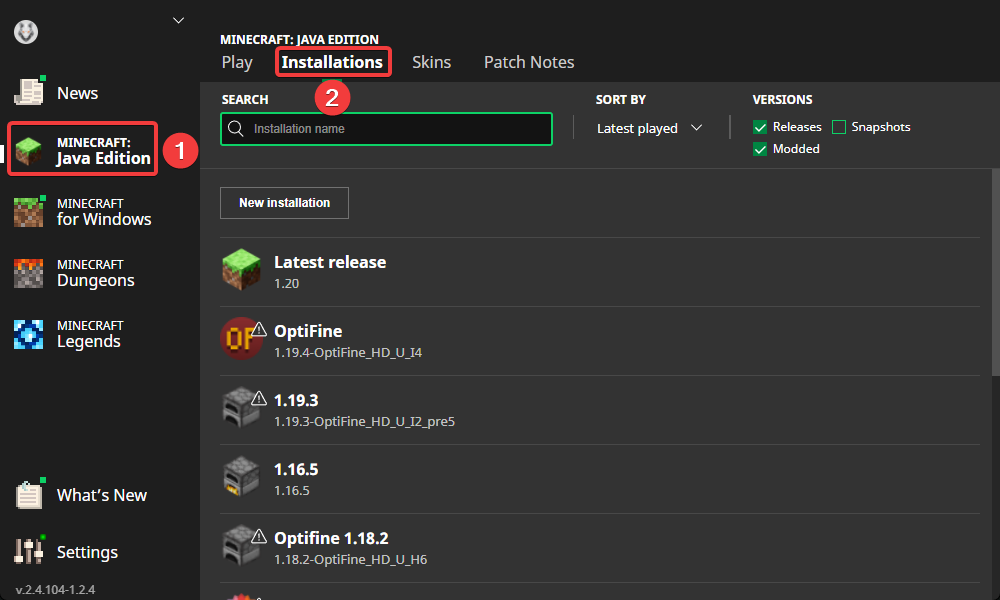
The Java Edition is the gold standard for version flexibility. Here’s how you become the boss of your versions:
- Open the Minecraft Launcher on your PC.
- Navigate to the Installations tab at the top.
- Click New Installation to create a profile for the version you want.
- In the Version dropdown, select your desired Minecraft version from legacy releases to the latest snapshots.
- Name your installation (e.g., Minecraft 1.12.2) so you can recognize it later.
- Hit Create and then launch Minecraft using this version profile.
This approach lets you jump between versions without conflicts. Want to know more? The official Minecraft support page on changing game versions dives deeper into the process.
Switching Versions in Minecraft Bedrock Edition
Things jump a bit when you move to Bedrock Edition. Unlike Java, version changes aren’t handled directly in a launcher. Instead, your game updates through the platform store (Xbox, Windows Store, mobile). To test older versions, you’d usually need a separate device or revert your system update manually — a hassle that’s often not worth the trouble.
Managing Mods and Version Compatibility
Mods can break in new versions. When using mods, your version choice becomes mission critical. How To Change Versions In Minecraft is about preserving your mod experience as much as game stability.
- Always check mod requirements before version switching.
- Create backups before moving versions.
- Use third-party launchers like MultiMC for advanced version and mod profiles.
Troubleshooting Common Issues
Here’s what to watch out for when swapping versions:
- Launcher crashing after switching versions? Ensure Java is updated on your machine.
- Can’t find your mod files? The new version profile may not recognize old mod folders.
- Server connection fails? Confirm server version compatibility.
Expert Tips For Smooth Version Changes
- Keep separate game directories for different versions.
- Use launchers with profile management to organize versions.
- Maintain backups regularly before switching versions.
- Check Minecraft forums and communities on version updates.
When To Avoid Changing Versions Yourself
If you’re messing with your Minecraft installation on a shared or institutional machine (like a school laptop), messing with versions without the green light can cause trouble. Always check with network admins or game hosts before altering versions. For servers requiring specific versions, don’t guess — confirm first to avoid server access issues.
2026 Minecraft Version Trends
By 2026, Mojang has expanded snapshots and release cycles. Minecraft Java offers an increasing variety of versions kept alive by community mods and custom maps. Stay updated on patch notes and community forums to know which version suits your gameplay goals best.
Choosing the best method to change your version depends on your edition and goals. Java Edition remains king in flexibility and modding control. Bedrock keeps it simple for casual gamers with automatic updates but less custom control. 🚀
Thinking back on how this all started, How To Change Versions In Minecraft is a skill every fan must have in their survival toolkit. It opens doors — virtually and creatively — letting you step into countless worlds without restrictions.
Additional Resources
Curious about detailed walk-throughs? This video tutorial on changing Minecraft versions for Java Edition breaks down the steps visually and is a great companion as you practice.
Want to understand the evolution of Minecraft itself and why version changing matters? Check this comprehensive Wikipedia article on Minecraft for insights into its history and mechanics.
Looking for a step-by-step guide with visuals? The Minecraft version change walkthrough from a popular content creator shows how to swap versions safely and effectively.

Source: www.youtube.com
Frequently Asked Questions
How do I switch to an older Minecraft version?
Open the Minecraft Launcher, go to ‘Installations’, create a new profile, and select the desired older version from the list. Then launch the game with that profile.
Can I play multiplayer if I change Minecraft versions?
You can only join multiplayer servers that support your current Minecraft version. Check what version the server requires before switching.
Does version switching affect my saved worlds?
Sometimes yes. Older worlds might not be compatible with newer versions and vice versa. Always backup worlds before switching versions.
Is it possible to have multiple Minecraft versions installed at once?
Yes, Java Edition lets you create multiple profiles with different versions, allowing side-by-side installations managed via the launcher.
Why can’t I change versions on Minecraft Bedrock Edition?
Bedrock Edition updates through your device’s app store, so version control is limited compared to Java Edition. Reverting versions usually requires uninstalling or special methods.
What should I do if my mods don’t work after switching versions?
Verify the mods are compatible with the Minecraft version you selected. If not, update mods or use the correct Minecraft version to ensure functionality.
Where can I find official information about Minecraft version changes?
The best source is the official Minecraft support page, Change Game Version for Minecraft Java Edition, which provides detailed and updated guidance.

Christina is a technical guide writer and gaming enthusiast with years of experience breaking down complex game settings. Specializing in server optimization and game mechanics, they are dedicated to helping players seamlessly customize their Minecraft experience—from updating skins and usernames to managing technical version settings.