Ever been stuck in Minecraft nighttime struggling with creepy mobs? How To Change Time In Minecraft isn’t just for show—it’s a powerful command that every player should know by heart. Imagine playing through that frustrating night with zero threats because you simply flipped the clock to daytime. It might sound trivial, but understanding how time manipulation in Minecraft works can turn your gameplay upside down in the best way.
- A full Minecraft day lasts 20 minutes real-time.
- Commands allow instant time changes.
- Time manipulation is essential for builders and adventure players.
Understanding Minecraft’s Time System
Let’s get the basics out of the way. Minecraft operates a day-night cycle where a full rotation lasts 24000 ticks, equating to exactly 20 minutes. The day starts at 0 ticks (sunrise), midday at 6000 ticks, sunset at 12000, and midnight at 18000. Knowing this timeline helps you set the exact time you want.
Why Change The Time?
- To avoid hostile mobs spawning during gameplay
- Make building easier with constant daylight
- Speed up adventure or exploration by skipping nights
How To Use Commands To Change Time
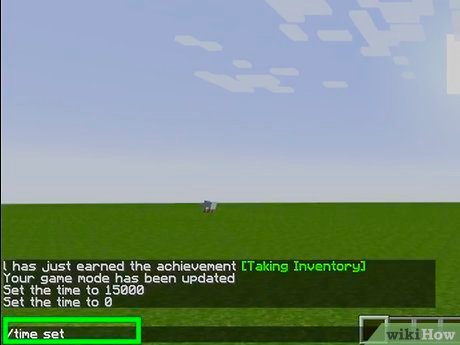
Changing time in Minecraft is primarily done with commands when cheats are enabled. Here’s the simplest way:
- Open the chat window by pressing T on PC.
- Type the command:
- Replace value with numbers like 0 (day), 12000 (night), 18000 (midnight), or 6000 (noon).
- Press Enter, and boom! Time changes instantly.
/time set value
Common Time Command Values
0– Sunrise (start of day)6000– Noon12000– Sunset (start of night)18000– Midnight
There’s even a handy shortcut to skip to day: /time set day or night with /time set night. These keywords make it easier when you’re in a rush.
Advanced Time Control: Using Command Blocks
If you’re a map maker or server admin who wants to automate time changes, the command block is your best friend. Place a command block with /time set day inside and trigger it with redstone or buttons to automate day-night shifts.
- They don’t show commands openly in chat to other players.
- You need to be in creative mode or be an operator on servers.
Changing Time on Different Minecraft Editions
Commands work slightly differently on editions like Bedrock or Java:
- Java Edition: Full /time set commands work flawlessly with cheats enabled.
- Bedrock Edition: Similar commands, but sometimes the interface or cheat toggling is different.
- Console Editions: May require enabling cheats in settings first.
Common Mistakes When Changing Time
- Forgetting to enable cheats before using /time commands;
- Using incorrect command syntax;
- Expecting time to change without proper permissions on multiplayer servers;
- Assuming time is synchronous across different server worlds without settings adjusted.
Practical Examples
Think of it like this: you’re building a sprawling castle. Night falls—mob creepers lurk all over. Instead of fighting, you open the console and just type /time set day. Sunshine again, no creepers, you build like a king. Or you’re on a server where it’s always night; you can lock time with command blocks so everyone enjoys a peaceful daylight-only experience.
Tips To Master Time Control In Minecraft
- Always toggle cheats on in single player or be an operator on servers.
- Use command blocks to automate day/night if you hate typing.
- Experiment with setting exact ticks for custom times.
- Practice commands in creative mode before trying on hardcore survival.
Effects Of Time Change On Minecraft Gameplay
Changing time affects mob spawning, crop growth, and other in-world events. Knowing when and how to manipulate time means you control the environment instead of letting the game dictate your pace.
Exploring Related Commands
/time addto fast forward time;/gamerule doDaylightCycle falseto freeze time at current setting;- Using daylight sensor blocks for redstone circuits tied to time.
Interested in precise commands that toggle time based on day or night? Visit this community example illustrating sophisticated conditional commands: how to make a command set the time to day if it is night or night if it is day.
Additional Tips To Troubleshoot Time Commands
- Check if cheats are enabled;
- Verify you’re in the world mode that supports commands;
- Confirm you have permission or operator status on multiplayer servers;
- Ensure command syntax matches the Minecraft edition you’re playing.
Where To Learn More About Minecraft Time Manipulation
For a visual step-by-step guide straight from the Minecraft community, check this detailed video tutorial on how to change the time in Minecraft. It’s packed with examples and community tips, perfect if you like seeing it done rather than just reading.

Source: www.idtech.com
Frequently Asked Questions
How do I enable commands to change time in Minecraft?
Activate cheats in your world settings before starting or through the open to LAN option in singleplayer, then use commands like /time set.
Can I automate time changes without typing commands each time?
Yes, command blocks allow you to automate time changes triggered by buttons, pressure plates, or redstone circuits.
Does changing time affect gameplay balance?
Absolutely. Changing to daytime reduces hostile mob spawning, making exploration safer but potentially reducing challenge.
Are time commands available in all Minecraft versions?
Most editions support time commands, but syntax or cheat enabling methods may vary between Java, Bedrock, and consoles.
How can I freeze time at a specific point?
You can stop the day-night cycle by using the command: /gamerule doDaylightCycle false, freezing the current time.
What are the exact time values to set specific parts of the day?
Use ticks: 0 (sunrise), 6000 (noon), 12000 (sunset), 18000 (midnight) for precise control over time.
Can I flip between day and night with one command?
This generally requires a conditional command or scripting, but some command combinations allow toggling time between day and night efficiently.
Mastering How To Change Time In Minecraft puts you in the driver’s seat of your world’s clock, letting you run your Minecraft session just how you want it. No more letting time call the shots—take control, flip between day and night, and craft your perfect adventure. 🚀

Christina is a technical guide writer and gaming enthusiast with years of experience breaking down complex game settings. Specializing in server optimization and game mechanics, they are dedicated to helping players seamlessly customize their Minecraft experience—from updating skins and usernames to managing technical version settings.