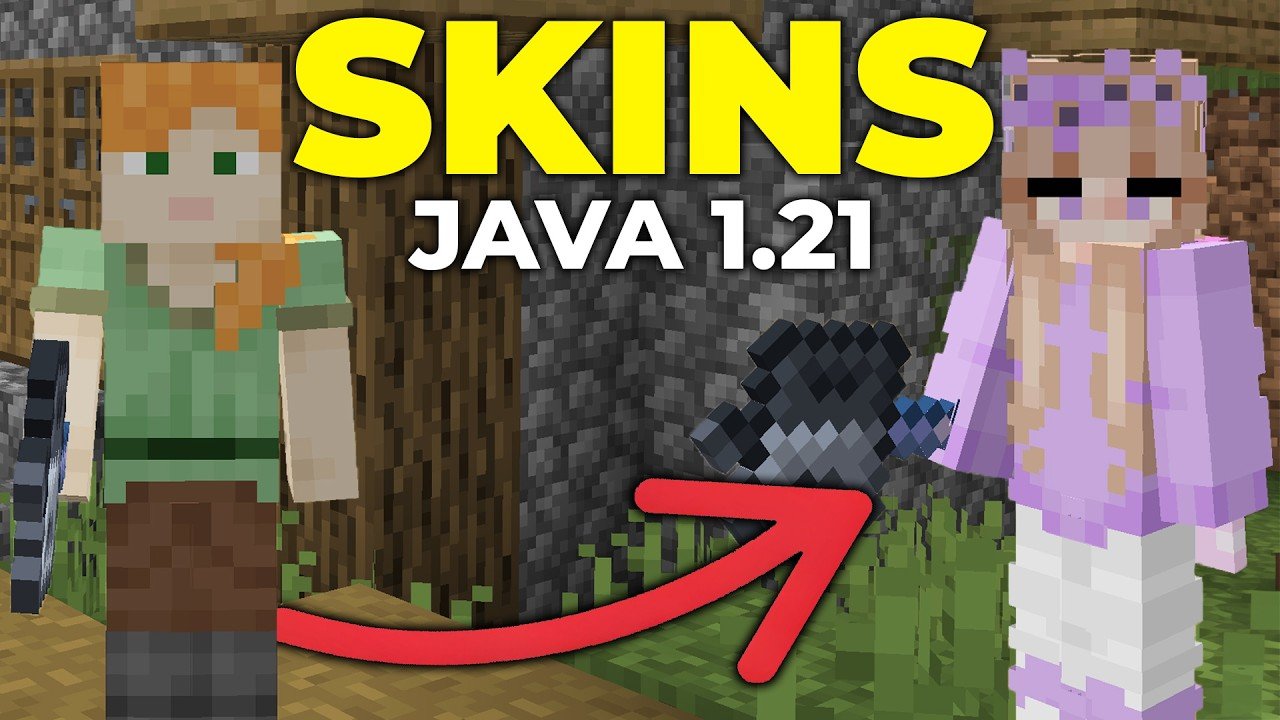
Ever stared at your Minecraft character and thought, “This skin’s gotta go!” Well, you’re in the right place to learn how to change skin in Minecraft PC. This guide will rush you through everything—no jargon, no fuss, just straight-up, practical steps to pimp your pixel self in 2026. Whether you want to rock a dragon or a superhero outfit, you’ll know exactly how to switch skins like a pro.
What Is A Minecraft Skin And Why Change It?
Your skin in Minecraft is basically your character’s outfit. Changing it is like picking a new costume for a party. Why settle for the default when you can stand out? Plus, fresh skins keep the game exciting — a new look can make long sessions feel brand new.
Accessing Skin Options In Minecraft PC: Java Vs Bedrock Editions
Most players use Minecraft Java Edition on PC, but some might use Bedrock. These editions handle skins differently.
- Java Edition: Skins are changed online in your Mojang or Microsoft account.
- Bedrock Edition: You tweak skins inside the launcher or in-game menus.
Java Edition Skin Change: Step-By-Step
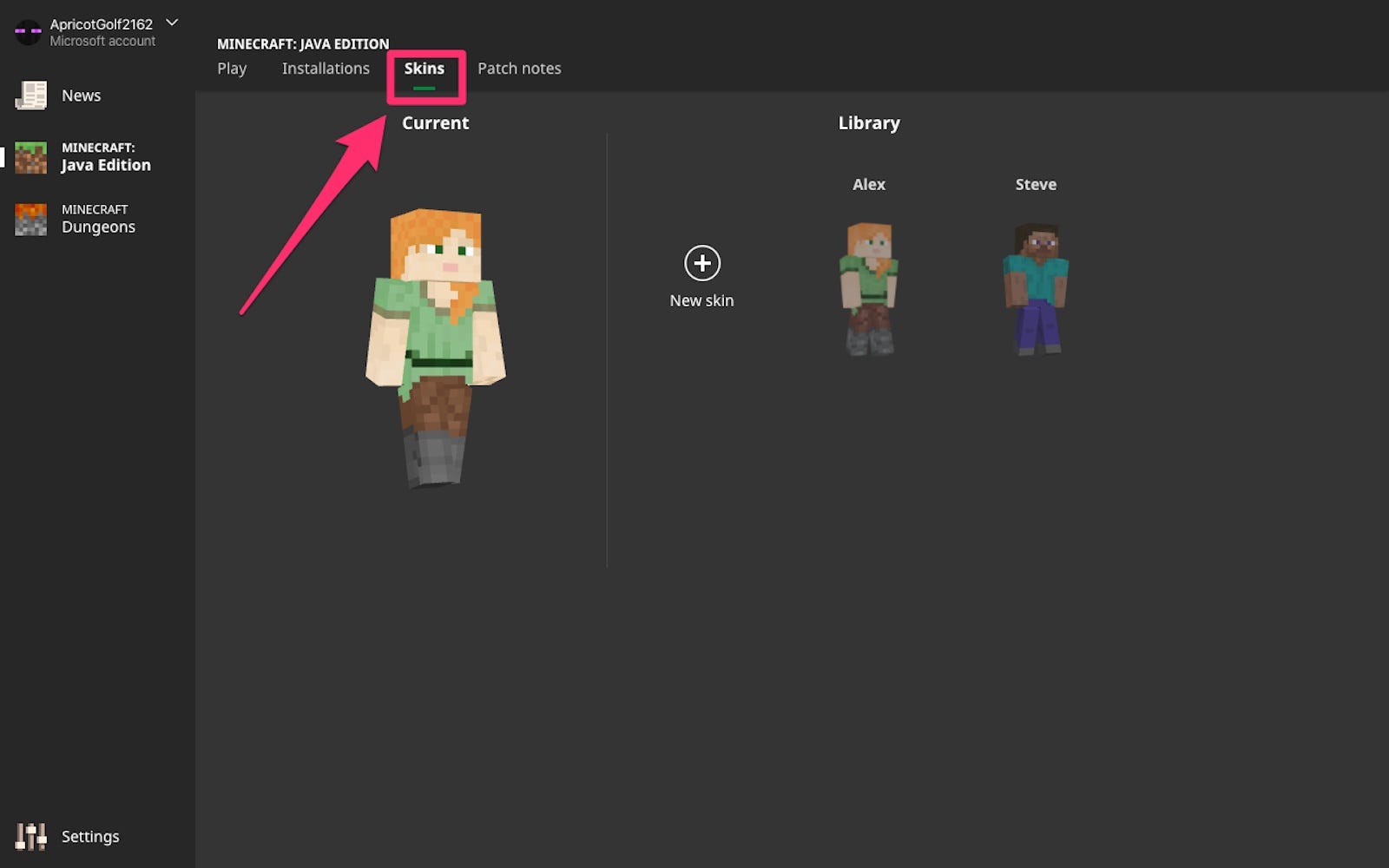
- Head to the official Minecraft site and log into your account.
- Go to your profile where you can see the current skin.
- Upload a new skin file (PNG format, 64×64 pixels usually).
- Click ‘Save’ and open Minecraft launcher.
- Launch your game and see your fresh look!
For more authenticity, check out the detailed guide on custom skins on Minecraft’s official help.
Changing Skin In Bedrock Edition On PC
Unlike Java, Bedrock offers skin packs inside the game and also lets you import custom skins directly.
- Open Minecraft Bedrock on your PC.
- Navigate to the dressing room or skin selector.
- Select a pre-installed skin or upload your own.
- Apply and enjoy your new appearance instantly!
Where To Find And Create Custom Skins For Minecraft PC
Tired of the same old skins? The Minecraft community has your back. There are tons of websites and editors — some simple, some advanced.
- Skindex – A giant library of free skins.
- Minecraftskins.com – Another great source with an easy editor.
- Third-party editors like Nova Skin that let you craft your look from scratch.
Watch how you can change your skin in Minecraft Java Edition with a visual walkthrough.
Uploading Your Custom Skin: The Do’s And Don’ts
Don’t rush the upload. Make sure your skin file is PNG format, 64×64 or 64×32 pixels, and fits the Minecraft template.
- ✅ Double-check skin size.
- ✅ Avoid copyrighted or offensive imagery.
- ✅ Save backups before making changes.
- ✅ Use trusted skin sources or create your own.
Troubleshooting Common Skin Change Issues
Sometimes skins won’t update immediately. Happens to everyone. Usually, logging out and back in, or restarting the Minecraft launcher shakes things loose.
- Clear launcher cache if possible.
- Confirm you’re logged into the correct account.
- Make sure your internet connection is stable.
For hands-on fixes, explore community tips in forums or the Minecraft Java Edition skin change questions.
How To Use Your New Skin In Multiplayer And Servers
Once you swap skins, other players will see the update immediately after you join or refresh the server. But remember, some servers have restrictions or their own skin packs. Always check server rules.
Best Practices For Creating Memorable Minecraft Skins
Be bold. Stand out with colors and designs that pop. Think about what story your skin tells—are you a knight, a wizard, or a futuristic explorer? Use layering to add depth.
Updating Your Skin Regularly: Why It Matters
Keeping your Minecraft PC skin fresh keeps your gameplay lively and can reflect your changing style or current game trends in 2026. Don’t let your character get stuck in 2010!
Advanced Skin Customization Tools: Worth Trying?
If you’re serious about your character’s look, tools like Nova Skin provide tons of options from textures to animations. They let you build your avatar piece by piece. It’s the graphic designer’s playground.
Summary Checklist: How To Change Skin In Minecraft PC
- ✅ Decide Java or Bedrock edition instructions.
- ✅ Choose or create a custom skin that fits your style.
- ✅ Follow steps to upload the skin correctly.
- ✅ Restart your game to see the new skin.
- ✅ Verify visibility in multiplayer matches.
Source: shop.layten.net
Frequently Asked Questions
Can I change my Minecraft skin for free on PC?
Absolutely! You can upload custom skins or pick free ones from many online skin databases without paying a dime.
Does changing my skin affect my Minecraft account stats?
Nope, changing skins is purely cosmetic. Your gameplay stats and progress remain unaffected.
What if my new skin doesn’t show up in Minecraft?
Try logging out and back in, restart Minecraft, and ensure you uploaded the correct skin file format.
Where can I safely download Minecraft skins?
Trusted sites like Skindex and Minecraftskins.com host safe, community-uploaded skins ready for download.
Is there a difference in skin changing between Minecraft Java and Bedrock editions?
Yes, Java skins upload via your Mojang/Microsoft account online, while Bedrock skins change inside the launcher or game interface.
Can custom skins cause problems with multiplayer servers?
Generally no, but some servers have specific skin rules or use proprietary skins. Always check before joining competitive servers.
How often should I update my Minecraft skin?
Whenever you want to mix things up! Changing your skin keeps your play style fresh and can reflect new ideas or trends in 2026.

Christina is a technical guide writer and gaming enthusiast with years of experience breaking down complex game settings. Specializing in server optimization and game mechanics, they are dedicated to helping players seamlessly customize their Minecraft experience—from updating skins and usernames to managing technical version settings.