Ever wondered how to change skins in Minecraft Java? Imagine jumping into your favorite server with a totally fresh look that screams ‘you’—whether it’s a sleek knight suit or a quirky alien outfit. Minecraft Java Edition thrives on customization, and mastering skin swaps is your golden ticket to standing out digitally. Let’s dive sharp and quick because nobody likes a dull avatar!
Understanding Minecraft Skins in Java Edition
Minecraft skins are simply textures wrapped around your character model. Changing them personalizes your experience and lets you express your gaming personality visually. Why stick to the default when you can flaunt creativity?
Types of Minecraft Skins
- Classic: The original template with limited arm width.
- Slim: Also called “Alex” model, slightly slimmer arms for diverse appearance.
Knowing which skin model fits your vibe is step one.
Where to Find Skins for Minecraft Java?
- Official Minecraft Skin Customization Guides
- Community sites like NameMC, Planet Minecraft, and The Skindex offer thousands of free skins.
🚀 Pro tip: Always download from trusted sources to avoid malware risks.
How To Change Skins In Minecraft Java – Step-by-Step
- Prepare Your Skin File: Usually a PNG image of 64×64 pixels or 64×32 pixels.
- Log into Your Minecraft Account: Use the official Mojang or Microsoft account portal (minecraft.net).
- Access the Skin Section: Under your profile, locate the “Skin” tab.
- Upload Your Skin File: Click ‘Upload’, select your PNG skin file, choose the model type (classic or slim), then save.
- Launch Minecraft Java: Open the launcher and start the game to see your new skin in action.
Tips for Custom Skin Creation and Editing
Want to craft your own skin? Tools such as NovaSkin or MCSkin3D provide interactive editors with previews. Editing each pixel tune-by-tune lets you nail the look you crave—extreme precision or quirky randomness.
Troubleshooting Skin Issues in Minecraft Java
- Clear Minecraft launcher cache if skin doesn’t update.
- Ensure you’re logged into the correct account where you uploaded the skin.
- Verify the skin file format and size for correctness.
- Reconnect to servers after skin change to see new appearance.
Common Mistakes When Changing Skins
- Uploading skins in unsupported formats (non-PNG).
- Forgetting to select slim or classic model causing visual glitches.
- Not saving changes after upload on the official profile page.
- Expecting skin changes to appear instantly without relaunching the game.
How Changing Skins Impacts Your Minecraft Experience
Your skin is your digital identity badge—changing it revives your connection to the game. It’s like switching outfits before a big night out; do you stick to safe looks or dare something wild? Skins are also great conversation starters in multiplayer realms.
For an up-to-date, hands-on video guide on skin changes, check out this 2026 Minecraft Java Skin Change Tutorial which walks you visually through the entire process.
Safety and Ethics in Skin Customization
Respect others’ creations and avoid skins that may offend or harass. The Minecraft community thrives on creativity — not controversy. Use skins responsibly and respect server rules about custom appearances.
FAQs and Final Thoughts
Ready to flaunt your unique style? Here’s the kicker: knowing exactly how to change skins in Minecraft Java means you can renew your avatar anytime with zero hassle. Keep exploring new skins or create your own to never look bland again!
Before jumping out, here’s another must-see detailed Minecraft Java skin change guide to ensure your setup is flawless and up to date.
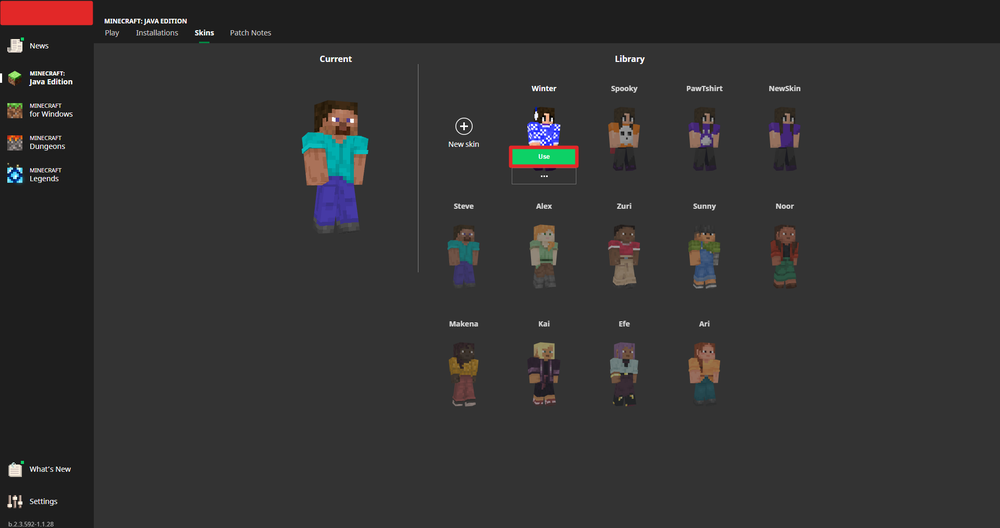
Source: nodecraft.com
Frequently Asked Questions
How do I upload a custom skin in Minecraft Java?
Log into your Minecraft account at minecraft.net, navigate to your profile’s Skin section, upload your PNG file, select the model, and save changes. Restart Minecraft Java to see your new skin.
Can I change skins without restarting Minecraft?
No, Minecraft Java requires a restart or a server reconnection to update your skin visually. It ensures the server fetches your latest skin data.
Are there free places to download Minecraft skins?
Absolutely! Trusted sites like The Skindex and NameMC offer thousands of free skins. Always use reputable sources to avoid suspicious downloads.
What’s the difference between classic and slim skin models?
Classic has wider arms (4 pixels), slim (Alex) has narrower arms (3 pixels). Minecraft Java supports both to offer aesthetic variety in avatars.
Can skin changes affect game performance?
No, skins are purely cosmetic and do not impact gameplay or performance, so feel free to swap skins as often as you like.

Christina is a technical guide writer and gaming enthusiast with years of experience breaking down complex game settings. Specializing in server optimization and game mechanics, they are dedicated to helping players seamlessly customize their Minecraft experience—from updating skins and usernames to managing technical version settings.