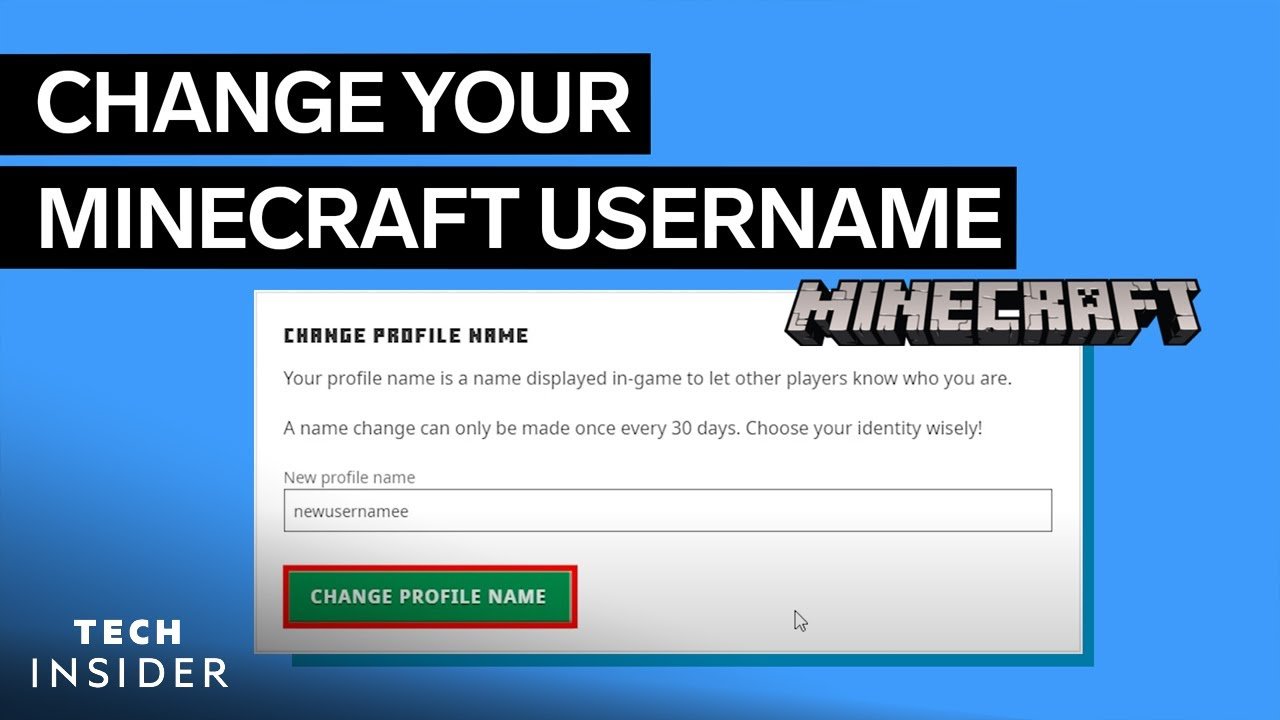
Wondering how to change Minecraft username? You’re not alone. By 2026, changing your Minecraft username remains a crucial step if you want to refresh your identity in-game or switch to something cooler. But remember, it’s not as straightforward as it used to be. The rules and steps have evolved and sometimes confuse long-time players.
Why Change Your Minecraft Username?
Maybe you started playing Minecraft years ago with a silly name and now want a more serious handle. Or maybe your username no longer fits your gaming persona. Whatever the reason, knowing the ropes is essential, because the process impacts your account and play experience directly.
Common Reasons For Changing Usernames
- Personal rebranding
- Security purposes
- Fixing typos
- Joining a new Minecraft community
- Switching from a gamertag to custom username
Preparing To Change Your Minecraft Username
Before diving headfirst, ensure your Minecraft account is correctly linked with your Mojang or Microsoft profile. This is key because usernames are managed via your official game account and the process differs between account types.
Check Account Type: Mojang vs. Microsoft
Minecraft shifted from Mojang accounts to Microsoft accounts recently. If you’re still on a Mojang account, consider migrating it first to avoid headaches. Changing your username on a Microsoft-linked account is slightly different and more secure.
The Step-by-Step Process to Change Your Minecraft Username
Ready to take action? Follow these numbered steps precisely to avoid common errors!
- Go to the official Minecraft website and log into your Mojang or Microsoft account.
- Navigate to the profile or account settings page.
- Find the ‘Change Profile Name’ or ‘Change Username’ option.
- Enter your desired new username, checking it against allowed characters (letters, numbers, underscores) and length (3-16 characters).
- Confirm the change by entering your password or verification methods.
- Complete additional identity verification if prompted.
- Log out and back into Minecraft to see your new username live.
Common Pitfalls & How To Avoid Them
Changing your Minecraft username isn’t always glitch-free. Here’s what can go wrong and how to dodge those problems.
- Attempting to change within 30 days of last change: this will block you.
- Choosing a username someone else already took: double-check availability before committing.
- Not verifying your account properly: follow verification steps carefully.
Post-Change Considerations
After updating your username, update any links, community profiles, or server whitelist entries to avoid login confusion. Plus, keep a note about your change date to avoid premature username swaps.
Updating Your Minecraft Server Access
Some private Minecraft servers base access on username, so after changing your Minecraft username, inform your server admin or update your registered username details to retain access.
Why You Should Never Share Your Account Details
“Your Minecraft account is your digital identity. Sharing login credentials risks theft, loss of progress, or worse. Always safeguard it like a treasure.”
Keep your account safe by using strong passwords and enabling two-step verification where possible.
How Changing Minecraft Username Affects Friends and Multiplayer
Your friends might get confused when your name suddenly changes, so consider notifying your regular gaming group. Also, some multiplayer platforms might cache old usernames; they’ll update after you log in next time.
When To Contact Support
If you hit unexpected errors or your username change isn’t reflected, don’t hesitate to reach out.
Microsoft’s official help site offers Minecraft account-related support for issues related to username changes, suspensions, and account management — a valuable resource if stuck.
Check detailed advice at the Microsoft Minecraft Account Help page for expert assistance.
Keep In Mind: Username Policies & Restrictions for 2026
- No spaces or special characters except underscores
- Length must be 3-16 characters
- Usernames cannot impersonate Minecraft staff or include offensive language
Extras: Changing Your Xbox Gamertag vs Minecraft Username
For those playing Minecraft on Xbox, changing the Xbox gamertag is different and requires Microsoft account changes distinct from the Minecraft username. Know the difference to avoid confusion.
Summary: How To Change Minecraft Username Successfully
If you want to change Minecraft username, follow proper procedures: verify account, check name rules, update settings, and inform your community. Don’t rush it. The username rule of one change every 30 days keeps things fair and secure for everyone.
Explore more gamer guidance and stay safe by following trusted sources. Your Minecraft identity deserves that respect.
.png)
Source: www.jetlearn.com
Frequently Asked Questions
How often can I change my Minecraft username?
You can change your Minecraft username once every 30 days. This cooldown period helps prevent abuse and confusion within the community.
What happens to my old Minecraft username?
After changing your username, your old one is locked for 37 days before anyone else can claim it. This protects you from accidental loss.
Can I revert to my old username after changing?
Yes, you can revert to your old username anytime after the 30-day cooldown, provided it hasn’t been picked up by another player.
Do username changes affect my Minecraft account data?
No, your saved games, achievements, and inventories remain intact when you change your Minecraft username.
Where do I change my Minecraft username if I use a Microsoft account?
Microsoft accounts require you to change your username through the official Minecraft website under your profile settings after logging in with your Microsoft credentials.
Can I change my username on Minecraft Bedrock Edition?
On Bedrock Edition, your username often reflects your Xbox Live gamertag, which means changing your gamertag changes your in-game name.

Christina is a technical guide writer and gaming enthusiast with years of experience breaking down complex game settings. Specializing in server optimization and game mechanics, they are dedicated to helping players seamlessly customize their Minecraft experience—from updating skins and usernames to managing technical version settings.