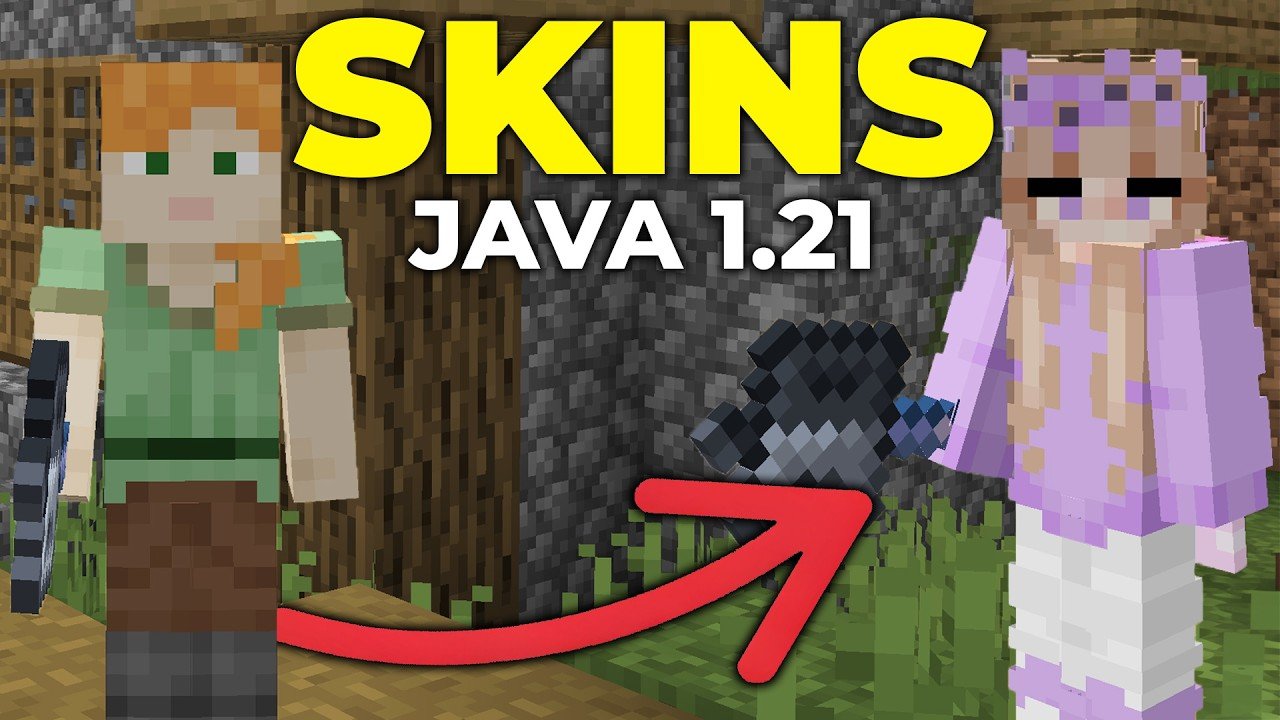
Ever wondered how to stand out while mining deep or building sky-high in Minecraft Java? How To Change Skin In Minecraft Java is actually simpler than you’d think! Imagine swapping your boring default Steve for a fierce warrior or a quirky robot just by a few clicks. 🎭 Whether you’re a newbie or a seasoned builder, customizing your avatar’s skin breathes life into your Minecraft escapades, making your gameplay uniquely yours.
- Default skins are called Steve and Alex.
- Skins can be customized on the Minecraft website.
- You can upload any PNG image formatted properly.
- Java Edition supports more complex skins than Bedrock.
Essential Overview: What is a Minecraft Skin?
Think of a skin as your Minecraft character’s outfit — an overlay that changes how the character looks in-game without altering gameplay mechanics. In Java Edition, skins are PNG images wrapped around the character model. It’s like giving your player a new costume for the block party! 🥳
Where to Find Skins?
You don’t have to be an artist to deck out your Minecraft avatar. Many websites host thousands of free skins. Just type How To Change Skin In Minecraft Java into your browser, and you’ll find tons of options. If you want a custom touch, use a skin editor — some are as simple as paint programs for blocks!
Popular Skin Sources:
- Minecraft Skins official site
- Skindex
- NameMC
- NovaSkin Editor
How To Change Skin In Minecraft Java: Detailed Steps
- Log into your Minecraft.net profile. This is your command center for skin swaps.
- Navigate to the ‘Skin’ section.
- Upload your preferred PNG skin file. Ensure it fits 64×64 pixels, supports transparency, and uses the right model size (classic or slim).
- Save changes and launch Minecraft Java Edition.
- Enjoy your new look! If it doesn’t appear immediately, restart Minecraft.
Common Skin File Issues and Fixes
- Skin not showing? Check if the PNG is the right resolution.
- Upload errors? Double-check file transparency and size.
- Old skins cached? Restart your client or clear cache.
- Using the wrong model (Alex vs. Steve)? Switch model option on website.
Advanced Tips For Skin Changers
- You can switch skins anytime outside the game on your profile.
- Popular YouTubers often change skins for branding.
- Some servers require specific skin formats.
Want to look like a famous character? Combine multiple skin layers in editors. Or create an animation skin with external tools to wow your friends. Just remember, Java Edition skin customizations let you push boundaries more than any other Minecraft version.
Why Skin Customization Matters in 2026?
With Minecraft constantly updated, social interactions and multiplayer servers are thriving. Your skin is your first impression. Want to express creativity or intimidate rivals? Easy—skin change is your silent statement without uttering a single word. 🎮
Safety and Best Practices
Beware of downloading skins from untrusted sites. Malware can hide in seemingly innocent files. Always scan files with antivirus and prefer official or well-reviewed skin providers. Custom skins enrich your game but don’t let them compromise your device.
How To Change Skin In Minecraft Java on Different Devices
PC / Mac
Follow the steps above via your browser profile. The desktop Java client updates the skin automatically after restart.
Using Launchers
Some custom launchers like MultiMC allow skin uploading, but the safest method remains through Minecraft.net.
Troubleshooting
- Ensure you’re logged in with the right account.
- Verify skin dimensions and PNG format.
- Try clearing Minecraft cache or reinstall game.
- Check Minecraft server skins if playing multiplayer.

Source: www.youtube.com
Frequently Asked Questions
Can I use skins from Minecraft Bedrock Edition on Java?
Generally no. Bedrock skins and Java skins use different formats and sizes. You must find Java-compatible skins or convert them manually.
Does changing my skin cost money?
No. Minecraft allows free skin changes through your profile. Only special skins bundled in marketplace editions might cost.
How often can I change my Minecraft Java skin?
Unlimited! Change as often as you like. Each time you upload a new skin to your profile, it updates in-game after restart.
What to do if my skin doesn’t update in the game?
Restart Minecraft fully. Check internet connection. Clear cache or reload profile settings on Minecraft.net.
Can I design my own Minecraft skin?
Absolutely. Many tools like NovaSkin let you paint your own, pixel by pixel. It’s a fun way to personalize your in-game avatar.
Remember, How To Change Skin In Minecraft Java is about expressing yourself uniquely in your virtual world. Whether you go bold or subtle, your skin reflects your style and personality. So jump in, swap that skin, and let your creativity do the mining! 🚀

Christina is a technical guide writer and gaming enthusiast with years of experience breaking down complex game settings. Specializing in server optimization and game mechanics, they are dedicated to helping players seamlessly customize their Minecraft experience—from updating skins and usernames to managing technical version settings.