Ever stumbled when trying to switch your Minecraft version? That nagging issue of mods not matching, or servers demanding a specific game release. How To Change Minecraft Version isn’t just a line of code or a flick of a switch — it’s the core skill every Minecraft fan needs to grasp in 2026. Let’s break down the process so you don’t feel fumbling in the pixelated dark.
Understanding Minecraft Versions and Why Switch?
Minecraft isn’t just one game; it’s many. Versions differ by features, bug fixes, or sometimes entire gameplay mechanics, especially across Java Edition updates. Want to relive the magic of Beta 1.7.3 or test a new snapshot? Knowing how to switch versions means full control, from classic block-building to cutting-edge features.
How To Change Minecraft Version Step-by-Step
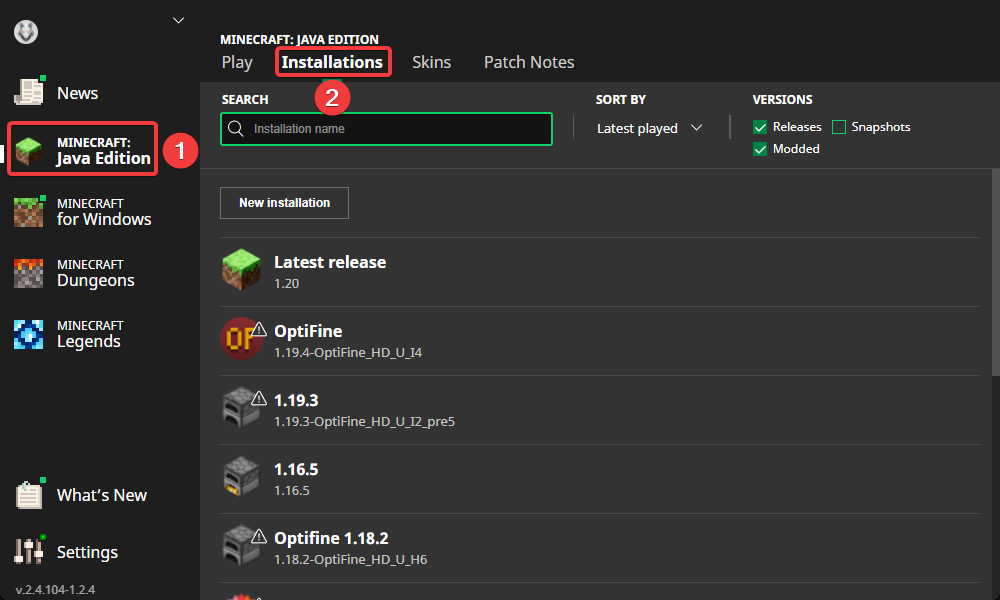
- Open Minecraft Launcher: Launch the official Minecraft launcher—your control center.
- Go to Installations Tab: Here you’ll find all your saved game versions and profiles.
- Create New Installation: Click “New Installation” to pick the game version you crave.
- Select Desired Version: The dropdown menu displays all available versions, including release, snapshots, and historical ones.
- Name the Profile: Label it something memorable, like “Adventures 1.12” or “Snapshot Experiments.”
- Save and Play: Hit save, then head back to the main screen, pick your newly created profile, and click play.
Minecraft Versioning Nuances You Must Know
Some versions are tricky beasts. For instance, snapshots get pushed out unpredictably for testing but might be unstable. Releasing an older version—say 1.7.10—to suit certain mods or multiplayer servers might require extra care because of compatibility quirks.
Mod Compatibility
Version mismatches usually kill mods dead. Stick to mod-specific recommended versions, or face crashes galore!
Server Join Restrictions
Servers often lock to one version. Change your Minecraft version accordingly to join their world without error messages.
Troubleshooting Common Version Switching Issues
- Launcher Won’t Show Older Versions: Check the launcher settings to ensure “Historical Versions” are enabled.
- Game Crashes on Launch: Clear your Minecraft cache and reinstall mods compatible with your selected version.
- Mods Not Working: Confirm your mods’ versions match your Minecraft game version exactly.
Automating Version Changes With Minecraft Launchers
If toggling versions becomes your full-time job, consider alternative launchers. Some popular third-party launchers automate version swaps, mod pack installations, and even server integrations. Just stay cautious—always download from reputable sources to dodge malware.
Minecraft Version Life Cycle: Staying Updated Responsibly
Minecraft updates briskly in 2026. Major releases come with hefty changes; minor patches fix bugs. Keeping track helps you decide when to upgrade or stick with a proven version for uninterrupted play. For a detailed explanation on versioning, you can check out this Minecraft update guide that breaks down version numbers clearly.
Practical Scenario — The Server Player’s Dilemma
Imagine John, a server fanatic who loves PvP. John’s favorite server locks at version 1.16.5 because of specific plugins. He uses the Minecraft launcher’s profile system to quickly switch to 1.16.5 when connecting to that server, then back to latest release to test new features offline. Without a firm grasp of How To Change Minecraft Version, John would’ve lost countless hours troubleshooting connection errors.
Is It Safe To Change Minecraft Versions Frequently?
Yes, but with precautions. Frequent version cycling can mess with mod directories and profiles if unmanaged. Keep dedicated profiles for different versions and always backup your save folders. This practice prevents headaches when an update doesn’t jive with your mods or worlds.
Useful External Resources for Advanced Version Management
For the hardcore enthusiasts, this tutorial on changing versions in Java Edition offers hands-on video steps. Also, the official Minecraft Help Center houses in-depth articles on the subject.
Comparison Table: Java vs Bedrock Version Switching
| Feature | Java Edition | Bedrock Edition |
|---|---|---|
| Version Control | Launcher-based, easy switching | Limited; switches with app updates |
| Mod Support | Extensive, version-dependent | Very limited, via add-ons |
| Snapshot Access | Available and toggleable | Not generally available |
Wrapping It Up
So, how to change Minecraft version? It’s about mastering the launcher’s profiles, understanding update flow, and bioengineering your gameplay needs. 🪓 Imagine it like tuning a piano; each version is a note that, when played right, orchestrates perfect harmony in your blocky adventures. Whenever you feel stuck or curious, revisit these tips, and keep modding, playing, and exploring boldly in Minecraft’s evolving universe of 2026.
Remember, How To Change Minecraft Version is your gateway to full control over your Minecraft experience, right from casual builds to hardcore modding sessions. Embrace the flexibility, savor the exploration.

Source: www.youtube.com
Frequently Asked Questions
Can I switch between Minecraft Java and Bedrock versions?
No, they are distinct editions with different game engines. Version switching only applies within each edition.
Will switching Minecraft versions delete my worlds?
Usually no, but some worlds might not be compatible with very old or very new versions—always backup.
How do I enable old historical versions in Minecraft launcher?
In launcher settings, check the option to show historical versions; then they become selectable in Installations.
Can I use mods with snapshots?
Snapshots often aren’t stable and mods may not support them yet; use snapshots cautiously if you depend on mods.
Why does Minecraft crash after changing versions?
Likely due to incompatible mods or corrupt files; clearing cache and using clean profiles usually fixes this.
Is there a faster way to switch versions than using the launcher?
Third-party launchers can automate version switching, but ensure they’re from reputable sources for security reasons.
How often does Minecraft release new versions?
Minecraft pushes small patches regularly with major updates less frequently; staying aware helps strategize your version use.

Christina is a technical guide writer and gaming enthusiast with years of experience breaking down complex game settings. Specializing in server optimization and game mechanics, they are dedicated to helping players seamlessly customize their Minecraft experience—from updating skins and usernames to managing technical version settings.