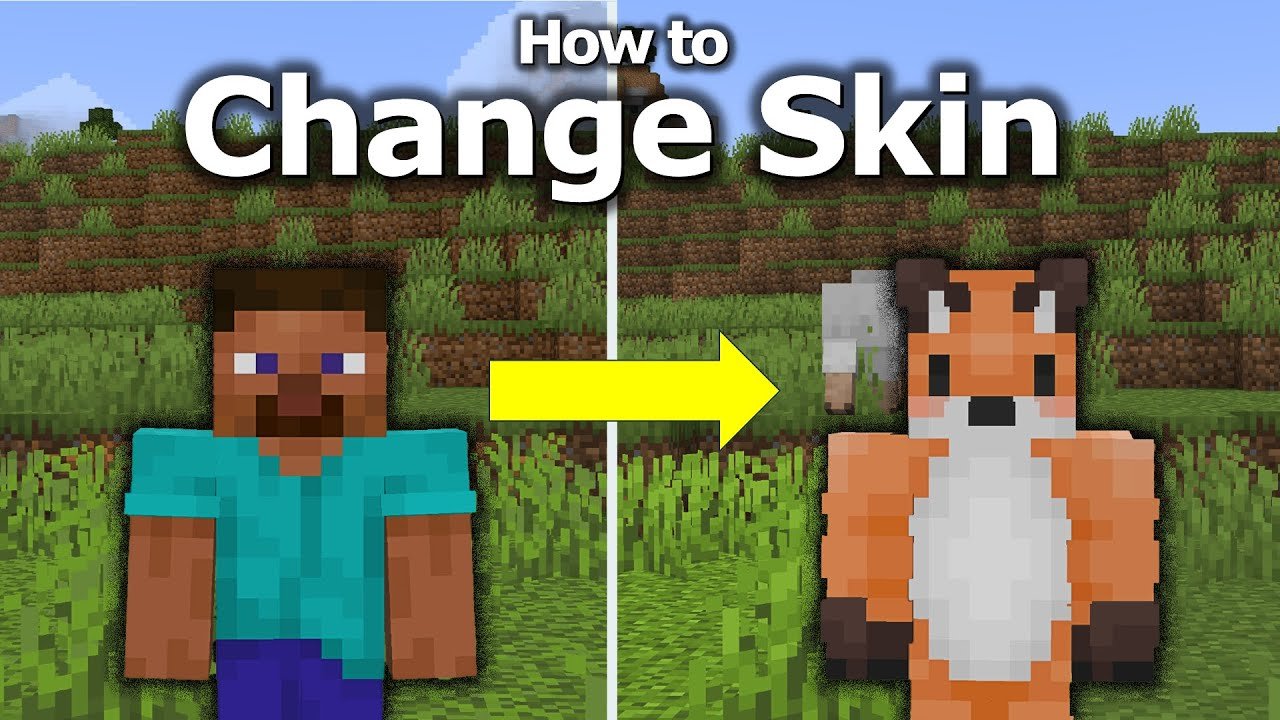
Ever jumped into Minecraft and instantly felt like your look was more ‘noob’ than ‘pro’? Well, that’s where the magic of knowing how to change Minecraft skin kicks in. Whether you’re rocking Java Edition or Bedrock, giving your avatar a fresh face or a heroic outfit can flip your gaming vibe from zero to hero. This guide takes you on a fun ride through the essentials of swapping skins, sourcing custom designs, and tweaking your persona without a hitch. 🚀
Understanding Minecraft Skins
Minecraft skins are basically textures mapped onto your character model. Changing your skin is your way to customize your Minecraft identity, and it’s surprisingly simple once you know the ropes. Skins can be anything from a superhero costume to retro outfits or fantasy armor. Believe me, a well-chosen skin sets you apart in multiplayer servers instantly.
How To Change Minecraft Skin: A Step-by-Step Overview
- Access Your Minecraft Profile: Go to the official Minecraft website or launch the game client, depending on your edition.
- Locate the Skin Section: In your profile settings, look for the skin option. For Java Edition, it’s a straightforward button; for Bedrock, you may need to browse through your avatar settings.
- Select Or Upload Your Skin: You can choose default options or upload custom skins. Custom skins must be PNG files that meet Minecraft’s size requirements.
- Save and Apply: Confirm your selection. The new skin will appear the next time you start the game.
Java Edition Skin Updating Details
Java Edition users can easily update skins by visiting Minecraft’s official custom skin page. Upload your PNG file, and your avatar gets the new look immediately. Remember, you might need to restart the client for changes to appear properly.
Bedrock Edition Skin Changes
For Bedrock players, skin packs are the currency of customization. They can be downloaded via the marketplace or created by players themselves. You can also import skins directly, but keep in mind the Bedrock edition uses a slightly different approach to skin layers.
Where To Find Great Minecraft Skins?
- Official skin packs: Available inside the game Marketplace.
- Community sites: Websites like Planet Minecraft offer tons of user-created skins.
- Custom design tools: Use online skin editors to craft your own look pixel by pixel.
Editing Minecraft Skins Like A Pro
Enjoy tweaking those tiny pixels? Tools like Skindex or NovaSkin give you a canvas to create your personalized look that no one else has. Upload your new creation directly or save it for later use. It’s a creative dive well worth your time.
Troubleshooting Common Skin Issues
- If your skin isn’t showing up, try logging out and back in.
- Check if your PNG file adheres to the size requirements (64×64 pixels).
- Verify that you upload the skin to the right Minecraft edition (Java or Bedrock).
- Clear your game cache if the skin update lags.
Why Changing Minecraft Skin Matters?
Your skin is your digital alter ego. It sets your tone and can intimidate opponents or attract allies. In competitive servers, a unique skin makes you instantly recognizable—no more getting lost in anonymous crowds. So, mastering how to change Minecraft skin isn’t just cosmetic; it’s your secret weapon to express identity and style.
Advanced Tips and Tricks for Minecraft Skin Enthusiasts
- Use transparency cleverly to make parts of your skin appear see-through for a ghostly effect.
- Try layering skins for a multidimensional look if your platform supports it.
- Keep backups of your favorite skins to switch on the fly.
Staying Safe While Changing Minecraft Skins
Beware! Not all skins found online are safe. Only download skins from reputable sources to avoid malware risks. If you’re unsure about a site, double-check community reviews or stick with official Minecraft Marketplace packs.
Learning More About Minecraft Skins
Diving deeper, check out a fantastic video tutorial for Java players teaching how to change your skin in Minecraft Java Edition. The step-by-step visuals will have you breezing through customization in minutes.
Community and Multiplayer Skin Etiquette
Respect others when selecting skins, especially on role-play servers. Avoid offensive or unsettling skins that may deter new players. Minecraft is all about fun, creativity, and community.
Summary: Mastering Your Minecraft Look
Knowing how to change Minecraft skin turns your pixelated world into a personalized playground. From default picks to custom creations, this guide equips you with practical tips and trusted sources to refresh your style effortlessly. Remember, your skin is the first impression—make it count! 🚀

Source: www.youtube.com
Frequently Asked Questions
Can I change my Minecraft skin for free in 2026?
Absolutely. Many websites offer free skins, and the official Minecraft site allows free skin uploads for Java Edition users. Just ensure you comply with the size and format requirements.
What is the difference between Java and Bedrock skin changes?
Java Edition supports direct skin uploads via the Minecraft profile, while Bedrock Edition uses skin packs available in the marketplace or allows importing skins with certain restrictions on layers and models.
How do I create a custom Minecraft skin?
Use online editors such as Skindex or NovaSkin. These tools let you paint directly on a 3D model or flat template that you can download and upload into your Minecraft profile.
Why does my new skin not show after uploading?
This often happens if you haven’t restarted Minecraft or logged out of your account. Also, check if your skin PNG meets the required dimensions and is uploaded to the correct game edition.
Are Minecraft skins safe to download?
Only download skins from reputable sources or the official Minecraft marketplace to avoid potential malware or inappropriate content risks.
Can I use custom skins in Minecraft multiplayer servers?
Generally yes, but some servers have rules on skins, especially if skins represent offensive or disruptive imagery. Always check server guidelines beforehand.
Is it possible to have animated skins in Minecraft?
Not by default. Minecraft does not support animated skins natively, but some mods and resource packs can simulate animation effects.
Ready to give your blocky self a makeover? Dive into customizing your skin today and make your Minecraft experience uniquely yours. The art of how to change Minecraft skin is no longer a mystery but a playful, creative journey! 💬

Christina is a technical guide writer and gaming enthusiast with years of experience breaking down complex game settings. Specializing in server optimization and game mechanics, they are dedicated to helping players seamlessly customize their Minecraft experience—from updating skins and usernames to managing technical version settings.