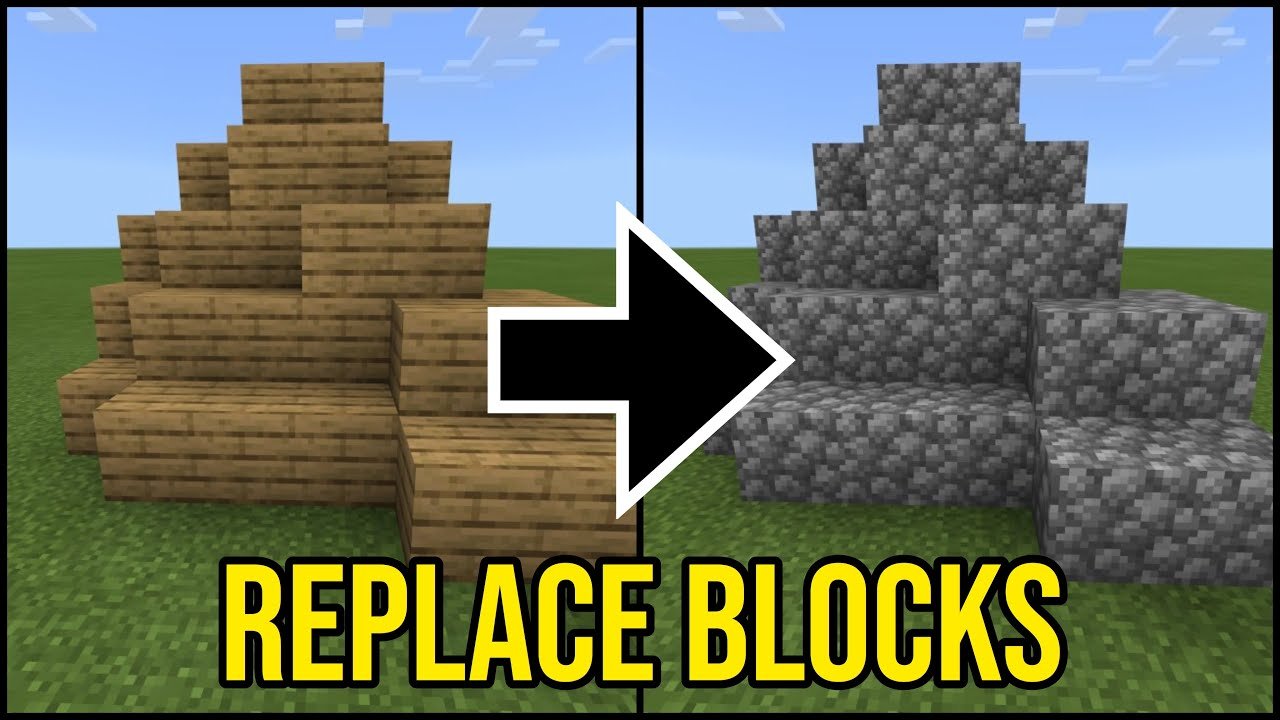
Imagine you’re knee-deep in your Minecraft world, crafting the perfect castle, but those blocks just aren’t fitting the vibe. Wondering how to change blocks in Minecraft without breaking your flow? 🚀 You’re in the right spot. Whether you’re playing Java or Bedrock Edition, swapping blocks can be a breeze once you get the hang of a few tricks and commands, transforming your builds from meh to masterpiece.
- Minecraft commands allow mass block replacement.
- The /fill command is your best friend for quick edits.
- Different editions (Java, Bedrock) have slightly different methods.
- Tools like WorldEdit offer advanced block modification.
Understanding Blocks & Their Importance
Blocks are the foundation of Minecraft’s world, be it dirt, stone, glass, or diamond ore. Each has unique properties, and changing one for another can affect both aesthetics and function. Knowing exactly how to change blocks in Minecraft means you have the power to design, repair, or makeover entire areas swiftly.
Manual Block Replacement: The Basics
Sometimes, the simplest way is hands-on swapping. Just break a block and place another. Yes, it’s basic but perfect for small edits or detailing.
- Use your pickaxe or hand to destroy the original block.
- Select your new block in your hotbar.
- Place it exactly where the old block was.
However, for big projects, manual swapping is tedious. So, let’s talk automation!
Using Commands To Change Blocks Efficiently
Minecraft’s command system is a game-changer. The /fill command lets you replace entire sections with just a few keystrokes. Here’s a quick rundown on the command and how to use it.
What is the /fill Command?
The /fill command fills a region with a specific block type or replaces a certain block with another. Say goodbye to breaking and placing thousands of blocks manually.
Basic /fill Syntax
/fill <x1> <y1> <z1> <x2> <y2> <z2> <block> [replace <oldBlock>]Example: To replace all dirt blocks in an area from coordinates (10, 64, 10) to (20, 70, 20) with stone:
/fill 10 64 10 20 70 20 stone replace dirtImportant: Coordinates must encompass the cuboid area you want to modify. This command works in Java Edition and is slightly different in Bedrock.
How Commands Differ on Bedrock Edition
In Bedrock, the basic concept is similar, but command structure and block names might differ. Learning some edition-specific quirks will save lots of headaches. Check this detailed tutorial on using commands in Bedrock for block replacement from a top Minecraft command guide.
WorldEdit and Other Tools For Pro Builders
If you’ve ever dreamed of changing thousands of blocks in seconds, meet WorldEdit, a mod beloved by builders worldwide. It lets you select regions and swap blocks with simple commands, including custom brushes and patterns. It’s a godsend for complex builds or landscaping.
How To Use WorldEdit For Block Change
- Select your target region with the wand tool.
- Use commands like //set, //replace to swap block types instantly.
- Create elaborate patterns or copy-paste sections seamlessly.
For newbie-friendly tutorials, the Minecraft community on YouTube offers walkthroughs such as this detailed guide on mass block replacement.
Tips & Tricks For Changing Blocks Like A Pro
- Always backup your world before massive changes.
- Use coordinates precisely to avoid replacing unintended blocks.
- Practice commands in creative mode before applying to survival.
- Understand block IDs and names for smooth command execution.
- Test commands in a small area before large-scale application.
Common Mistakes & How To Avoid Them
Beginners often mistake block IDs or mess up coordinates. This can lead to unintended destruction or weird changes. Another pitfall is forgetting to save or backup worlds before massive replacements. Don’t repeat these errors! Test commands and always save.
Advanced Block Swapping: Conditional & Filtered Replacements
Want ninja-level edits? Use target selectors and filters with commands to replace blocks only if they meet certain conditions. For example, swap stone only if next to water, or change blocks inside specific biomes. This subtle control requires command mastery but rewards you with precision edits.
Maintenance And Preventing Unwanted Changes
Once you’ve changed blocks, keep your builds sturdy by avoiding griefing mods or server hacks. Regular saves and server-side protections can prevent accidental or malicious block changes.
When To Call In The Experts
If you’re running a large server or complex world, professional admins can use plugins and scripts to automate safe block transitions with rollback options. If changing blocks manually or with basic commands sounds overwhelming, don’t hesitate to get help to keep your world pristine.
To explore quick block replacing methods in Minecraft 1.18, watching a real-time tutorial like the one covering mass replace blocks in Minecraft is invaluable.
Summary: How To Change Blocks In Minecraft (Final Thoughts)
Changing blocks in Minecraft isn’t just for tweaking your builds — it’s a fundamental skill that can save loads of time and energy. Whether you’re hand-placing blocks, mastering the /fill command, or wielding powerful tools like WorldEdit, knowing how to change blocks in Minecraft props you up as a versatile builder and gamer in 2026. Keep experimenting, stay safe with backups, and watch your worlds evolve.
Looking for a practical walkthrough on replacing blocks using Bedrock commands? Here’s a useful video explaining the fill replace command for Bedrock Edition.

Source: www.youtube.com
Frequently Asked Questions
How do I replace all blocks of one type with another in Minecraft?
You can use the /fill command specifying the coordinates for the area and use the ‘replace’ keyword followed by the block type you want to change. For example, /fill <x1> <y1> <z1> <x2> <y2> <z2> stone replace dirt replaces dirt blocks with stone within the specified area.
Can I change blocks in Minecraft without commands?
Yes! You can manually break and place blocks one-by-one or use mods and tools like WorldEdit to help with large-scale changes, but commands are usually faster and more efficient.
Is WorldEdit available for Bedrock Edition?
WorldEdit is primarily a Java Edition mod. Bedrock Edition has different tools and addons, but its command system also supports several powerful block manipulation commands.
What precautions should I take when replacing blocks?
Always backup your world before doing mass block changes. Double-check coordinates to avoid unwanted damage, and if possible, test commands in creative mode before applying them in survival.
Where can I find more tutorials on block replacement?
YouTube has numerous up-to-date tutorials for both Java and Bedrock editions. For example, the video on mass block replacement techniques is an excellent resource.

Christina is a technical guide writer and gaming enthusiast with years of experience breaking down complex game settings. Specializing in server optimization and game mechanics, they are dedicated to helping players seamlessly customize their Minecraft experience—from updating skins and usernames to managing technical version settings.