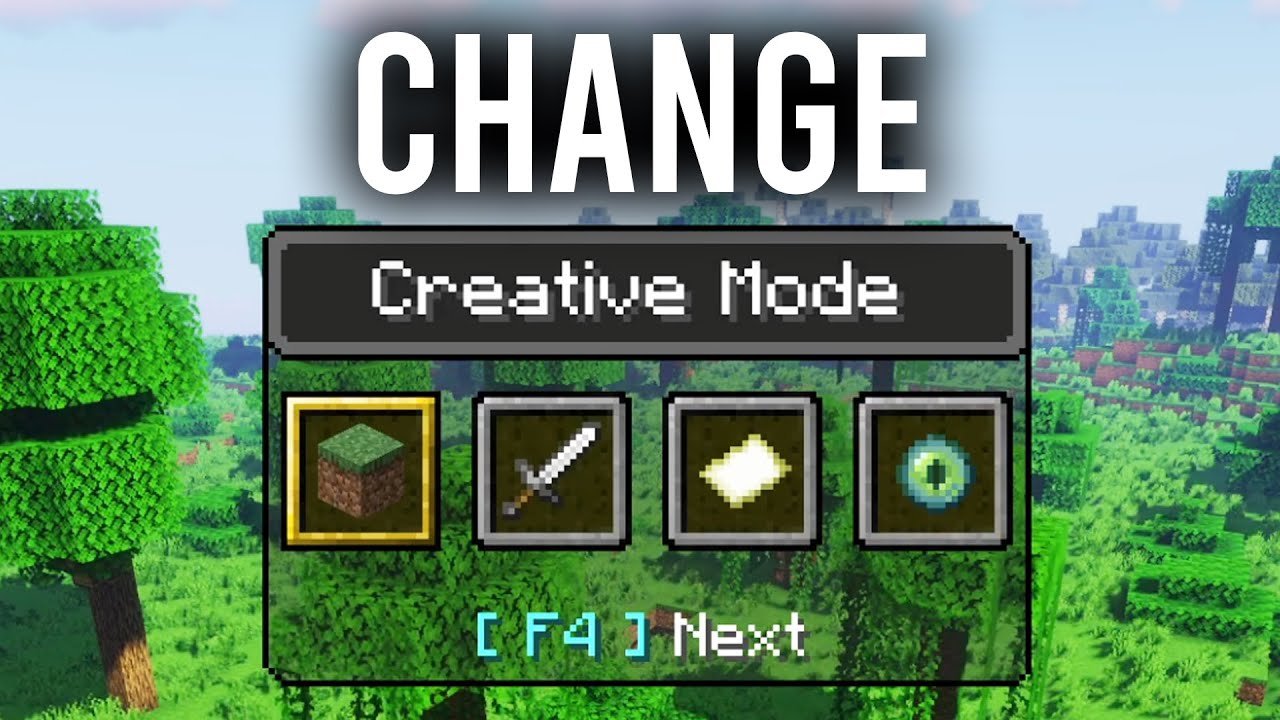
Ever jumped into a Minecraft world and realized you needed to switch things up? Maybe you wanna get creative, or just try out survival without restarting your game. Knowing how to change gamemode in Minecraft Java is your golden ticket. It’s not just a trick to play around but a legit way to customize your gameplay experience instantly in 2026’s newest updates. Let’s get you rolling with practical steps that make jumping between gamemodes a breeze.
What Are Minecraft Gamemodes?
Before diving into commands, you gotta know what each mode means. Survival is your classic fight-to-survive mode complete with crafting and mobs. Creative tosses you all resources and flight privileges to build endlessly. Adventure helps you explore custom maps without breaking blocks recklessly. Spectator lets you fly freely through blocks, invisible to all.
Why Switch Gamemodes?
- Test new builds intimately with Creative.
- Practice survival skills in the classic environment.
- Explore adventure maps without accidental damage.
- Scout areas with Spectator for strategy.
Basic Command To Change Gamemode
The magic phrase here is the ‘/gamemode’ command – your gateway to changing play styles instantly. Minecraft Java Edition requires you to be an operator on a server or have cheats enabled in single-player.
- Open the chat by pressing T.
- Type
/gamemode <mode> [<player>]. - Replace
<mode>with one of: survival, creative, adventure, spectator. - Hit Enter, and bingo! Your mode changes.
For example, /gamemode creative puts you in Creative mode immediately.
Example Commands
/gamemode survival/gamemode creative Player123/gamemode adventure/gamemode spectator
Enabling Cheats To Use Gamemode Commands
Don’t see the command working? Cheats might be off. You need to enable cheats when creating your world or from the game menu if permitted:
- Pause your game.
- Go to “Open to LAN”.
- Turn on Cheats.
- Start LAN world and use commands.
This method is super handy if you forgot to enable cheats initially but don’t want to restart your world. However, it only lasts for your current session.
Switching Gamemodes On Multiplayer Servers
Admins rock powerful command tools on servers. Typically, players can’t switch modes unless they have permissions or are opped by the server owner. If you run a server, use console commands or operator status to change modes quickly.
💬 “I had to convince my admin friend to op me before I could experiment with Creative mode on our survival server. Worth it!” — Minecraft player testimony.
Gamemode IDs and Aliases
If you’re feeling shortcut-happy, you can use numerical IDs instead of full mode names:
- 0 = Survival
- 1 = Creative
- 2 = Adventure
- 3 = Spectator
So typing /gamemode 1 is the same as /gamemode creative — neat for speedrunners or command block pros.
Practical Tips & Troubleshooting
- Ensure you have the right permissions or cheats enabled.
- If commands don’t work, check if a mod or plugin restricts them.
- Restart the game if sudden glitches happen switching modes.
- Always save your world before switching to Spectator to avoid losing track of your location.
Creative Mode Quick Tricks
While in Creative, you gain instant access to every item via your inventory. Flight gives you unparalleled building capabilities. Experiment without fear—no mobs will attack you, and resources don’t deplete.
Survival Mode Essentials
Switching to Survival immerses you in classic Minecraft tension. Your health and hunger bars become life-lines. Use this mode to test builds under pressure or play genuinely.
Adventure Mode Use Cases
This mode locks players out of breaking blocks unless they use the correct tools. Perfect for map creators who want to preserve custom worlds while players explore.
Spectator Mode Insights
Flying freely, invisible, it’s your spy mode. Great for checking out builds or scoping rare resources without influencing the world.
Combining Gamemodes in Gameplay
Switching modes on the fly complements survival or creative goals. A builder might switch to Spectator to survey land, then Creative to build, then Survival to test defensibility.
Want the best all-in-one? Try toggling modes mid-game and see what fits your style best.
Additional Resources & Updates (2026)
Stay current with Minecraft Java updates by visiting the official blog or community tutorials. The latest versions sometimes tweak command syntax and add new features to gamemodes, so staying informed is key.
Check out an expert deep dive on gamemode changes in this Minecraft in-game gamemode changing guide for thorough command nuances.
For a quick overview, YouTube has handy videos like the How To Change Your Gamemode in Minecraft (Java & Bedrock) tutorial that breaks it down visually.
Master Your Minecraft Journey Today
So, want to flex that command muscle and truly customize your Minecraft adventure? Now you’re ready. Learning how to change gamemode in Minecraft Java isn’t just for pros anymore. It’s for anyone hungry to mix fun, testing, and creativity without limits.
Get your hands dirty using those commands, toggle modes like a pro, and most importantly: play your way. Whether you’re constructing towering fortresses or stealthily exploring in Spectator, this knowledge changes your entire game experience.
Don’t forget to explore this comprehensive guide regularly for the freshest tips aligned with 2026’s newest Java updates.

Source: www.wikihow.com
Frequently Asked Questions
How do I enable cheats to change gamemode in Minecraft Java?
To enable cheats, start your world with cheats enabled or open to LAN and activate cheats in the settings. This unlocks command use like changing gamemodes.
Can I change another player’s gamemode on a server?
Only if you have operator privileges or proper permissions. Then, use /gamemode <mode> <player> to switch their mode.
What happens if I switch to spectator mode?
You become invisible and can fly freely through blocks but cannot interact with the world. Ideal for exploration and scouting.
Are gamemode commands different in Minecraft Bedrock?
Yes, commands vary slightly in syntax, so check your edition’s specific rules. Java commands won’t always work identically on Bedrock.
What if my gamemode command doesn’t work?
Check if cheats are enabled, if you have sufficient permissions, or if mods/plugins restrict commands. Restarting the game or server can also help.
Is it safe to switch gamemode mid-game?
Generally yes, but be cautious when switching to spectator if underground or outside world boundaries. Save progress before switching modes to avoid issues.

Christina is a technical guide writer and gaming enthusiast with years of experience breaking down complex game settings. Specializing in server optimization and game mechanics, they are dedicated to helping players seamlessly customize their Minecraft experience—from updating skins and usernames to managing technical version settings.