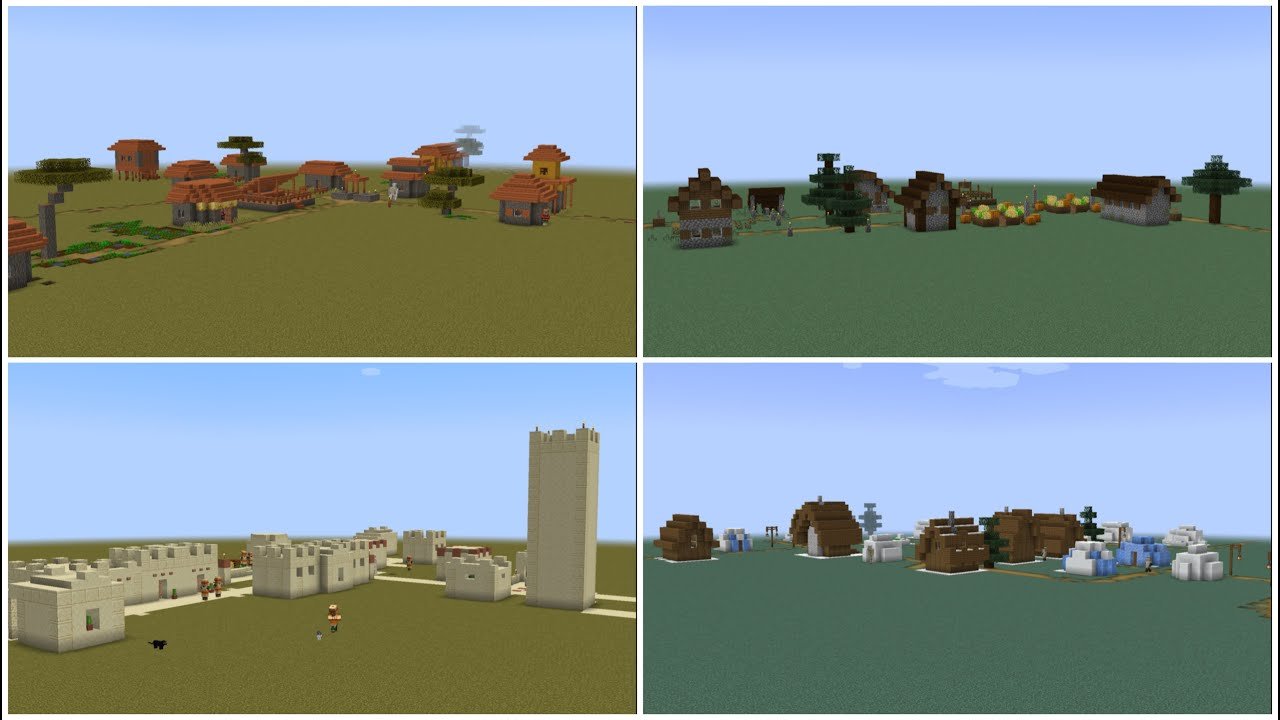
Ever wondered how to change biome in superflat Minecraft? You’re not alone. Superflat worlds are popular but notoriously bland unless you customize them. Imagine spawning in a lush jungle instead of an endless ocean of dirt—sounds unreal? Not anymore.
Let’s jump right into tweaking the biome—yes, it’s doable, but the method depends heavily on the Minecraft edition and your comfort with commands or mods. For those rocking Java Edition or Bedrock, this guide drops everything you need for success.
Why Change Biomes In Superflat Minecraft?
Superflat worlds often serve as creative canvases or testing grounds. But the biome drastically affects environment, mobs, and resource availability. Switching biomes breathes life into these simple worlds and tailors gameplay challenges or aesthetics. For example, a desert biome introduces husks, while a forest offers abundant wood and animals.
Approach 1: Customize During Superflat World Creation
The cleanest way to set a biome is at world creation. Here’s how it rolls:
- Open Minecraft (Java Edition preferred for ease)
- Navigate to ‘Create New World’ > ‘More World Options’
- Click ‘Superflat’, then ‘Customize’
- In the customize menu, select ‘Presets’ or manually edit the layers and biome
- Enter the biome ID or name (like ‘plains’ or ‘desert’)
- Save preset, create the world
This approach guarantees your superflat chunk is biome-ready from day one. Pro tip: Experiment with custom presets for funky layer combos.
Approach 2: Change Biomes Using Commands After Creation
What if you’ve already built your superflat world and want a fresh biome vibe? Commands save the day, but not without quirks:
- Use the /fill biome command if available (Java 1.19+).
- Command example:
/fillbiome x1 y1 z1 x2 y2 z2 minecraft:plains - This changes the biome in the specified area.
Heads up, this command is snapshot-level or recent in 2026 Minecraft builds. For earlier versions, command blocks or external mods are your alternatives.
Check out this insightful walkthrough on YouTube for biome changes in Minecraft Java Edition to see the command in action.
Approach 3: Use Mods or External Tools
Mods have long been the go-to for biome tweaks in superflat worlds. Tools like “AMIDST” or Minecraft Editors let you morph biomes with a few clicks.
Advantages here:
- No strict command syntax needed
- Visual previews before committing
- Broader biome variety selection
But beware: mods may disrupt vanilla gameplay, and compatibility might vary with the latest 2026 updates.
For Minecraft Bedrock fans, check mods or add-ons that offer biome editing capabilities. The process is slightly different but equally effective.
Discover more about customizing Bedrock superflat biomes via this detailed tutorial for Bedrock biome customization.
Detailed Steps to Implement Biome Change in Java Edition
Let’s break it down with a deeper dive:
- Back up your world—never skip this. Messing with biomes can corrupt chunks.
- Decide on the biome you want. Use Minecraft’s official biome IDs.
- Use the /fillbiome command targeting coordinates specifically.
- Wait a few seconds for changes. You might need to reload the chunk or restart the game.
- Test mob spawns and terrain features to ensure biome took effect.
Not seeing changes? Double check the coordinates or biome ID spelling. Biome updates don’t always propagate immediately. Walking around or using F3 + A (reload chunks) often helps.
Biome Editing in Bedrock Edition
Bedrock edition is trickier due to fewer built-in commands for biomes. Options include:
- Using external world editors designed for Bedrock
- Applying add-ons that rewrite biome data
- Adjusting flat world presets before creation
A handy guide can be found in this Minecraft Bedrock biome change tutorial. Always test on copies to avoid frustrating mistakes.
Common Mistakes When Changing Biomes in Superflat Minecraft
Never work on your primary world without backups. Also, changing biomes can cause biome-specific blocks and mobs to disappear or glitch.
- Wrong coordinates in commands causing no visible effects.
- Forgetting to reload chunks after changes.
- Ignoring compatibility issues with mods and Minecraft versions.
- Accidentally overwriting important world data during editing.
Safety & Backup Recommendations
If your world means a lot, keep backups—daily if you’re experimenting heavily. Minecraft world corruption is real and ruthless.
Rarely, biome switches can cause terrain glitches or odd mob behavior. Keeping a safe restore point lets you iterate without heartbreak.
Enhance Your Superflat Experience Further
Want to spice things up? Combine biome changes with custom structures or resource packs. Imagine a swamp biome filled with custom mobs!
Use creative mods or datapacks for better biome ambiance or new biome-related gameplay elements.
Summary Checklist: How To Change Biome In Superflat Minecraft
- Decide your biome and Minecraft edition.
- Choose world creation customization or command-based methods.
- Back up before editing.
- Apply biome changes via presets, commands, or mods.
- Reload chunks and verify biome features and mobs.
- Adjust, experiment, and backup regularly.
To wrap it all up, mastering how to change biome in superflat Minecraft amps your world’s personality and gameplay depth. Start small, backup often, and get creative. This is your playground!
If you want a visual companion to these biome changes, here’s a thorough guide on customizing superflat worlds in Minecraft Java Edition that aligns perfectly with today’s tips.

Source: www.youtube.com
Frequently Asked Questions
Can I change the biome of an existing superflat world?
Yes, but the method varies by edition. Java Edition supports biome changes via commands like /fillbiome (in newer versions). For older versions or Bedrock, mods or world editors are best.
Does changing the biome affect existing structures?
Biome changes usually don’t alter existing blocks, but biome-specific features like grass color, mobs, or plants will update and may cause some blocks to vanish or change appearance.
Are there risks to changing biomes in superflat worlds?
Yes. Risk includes chunk corruption, lost mobs, or world glitches. Always backup before attempting biome changes.
Which Minecraft edition is best for biome customization?
Java Edition is generally best due to better command support and modding flexibility. Bedrock requires external tools or add-ons for comprehensive biome changes.
Can I automate biome changes?
Using command blocks and redstone contraptions, you can automate biome changes in Java Edition, especially in command-friendly versions.
Are biome IDs required to change biomes?
Yes, knowing the exact biome ID or name (like minecraft:desert) is necessary for commands and presets.
Where can I find more detailed tutorials on biome changing?
Check out videos like this Java biome change tutorial or Bedrock guides like this biome customization walkthrough for hands-on instructions.

Christina is a technical guide writer and gaming enthusiast with years of experience breaking down complex game settings. Specializing in server optimization and game mechanics, they are dedicated to helping players seamlessly customize their Minecraft experience—from updating skins and usernames to managing technical version settings.